2 minutes
Discover and keep track of upcoming and pending events in Xello from your dashboard or by clicking Events in the top menu.
Attending
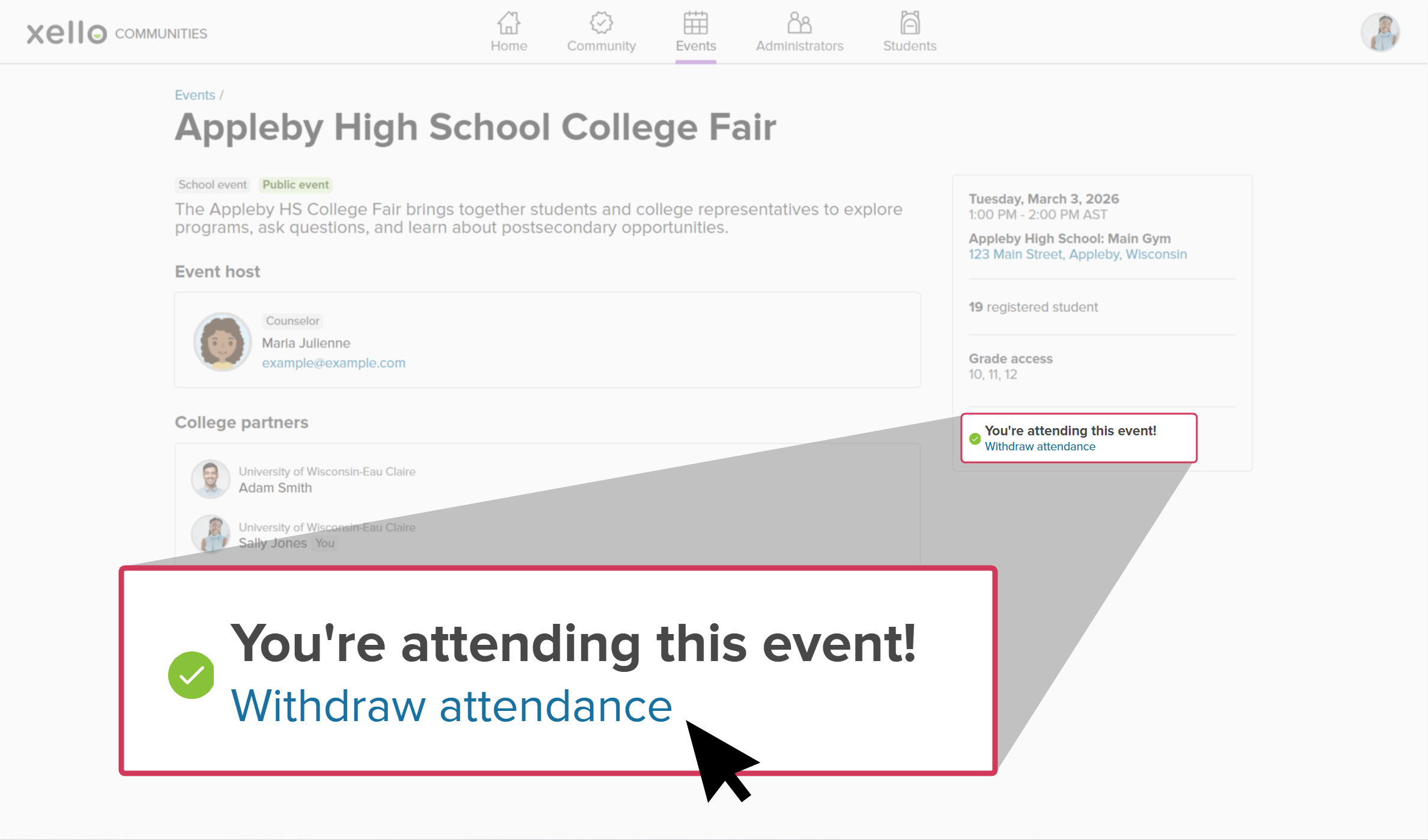
On the Events page, you’ll be able to view at a glance the most upcoming events that you are planning to attend. Click the event name to open that event’s details, including who is hosting it, which college partners are attending, the date and location, which grades have access, and your attendance.
If you can no longer attend the event, you can change your RSVP. In the event’s details, in the section with the date and location, click Withdraw attendance.
A modal will open to confirm you want to withdraw from the event, with space to add a note, if you’d like. To confirm, click Withdraw.
 Back to top
Pending
On the Events page, in the Pending section, you’ll be able to view the events you were invited to and which are waiting for you to RSVP, and the events you requested to attend.
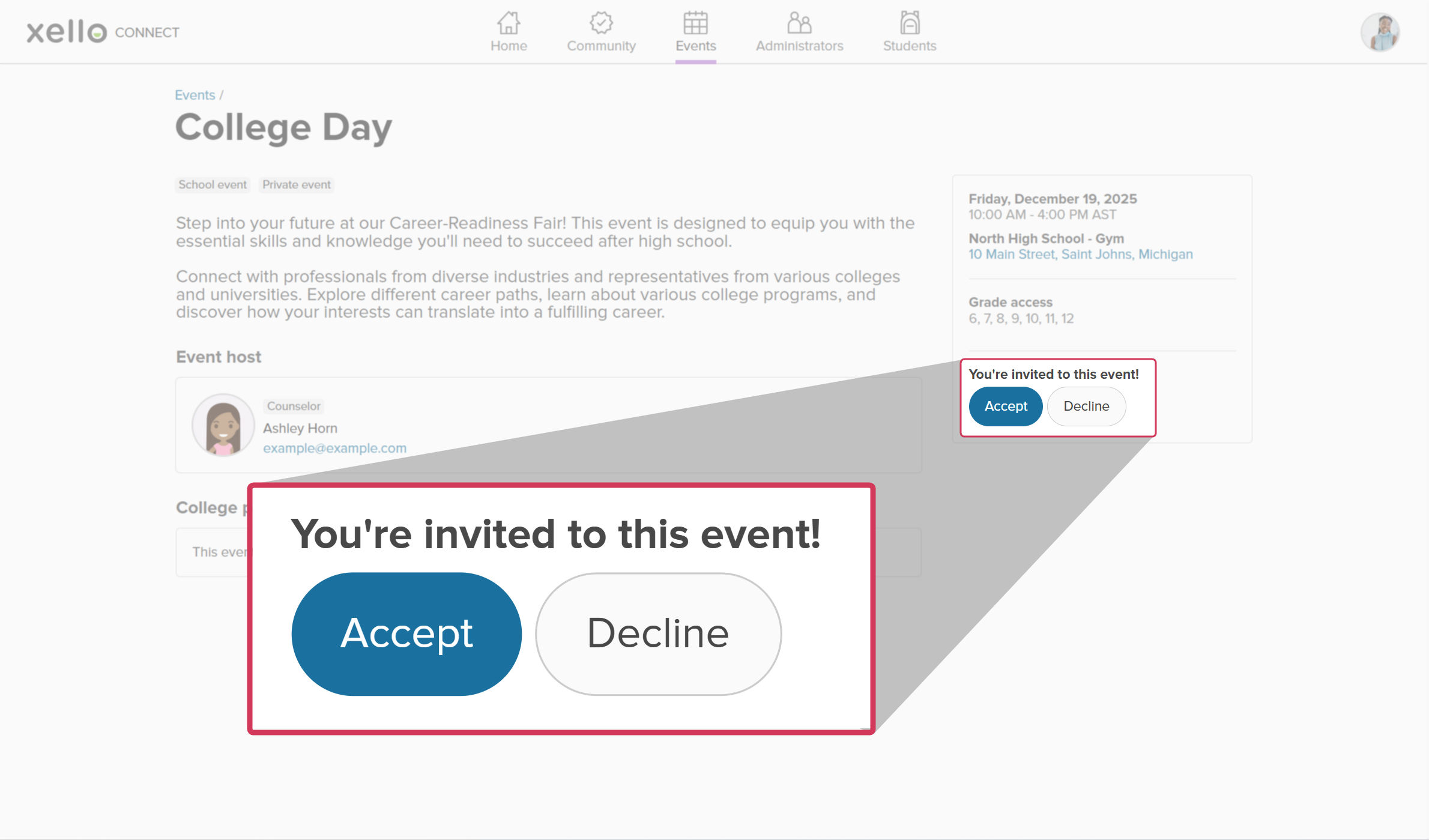
If you were invited to an event and need to confirm your attendance, click the event name to open that event’s details, including who is hosting it, which college partners are attending, the date and location, which grades have access, and space to RSVP. The host will be notified via email once you confirm your attendance.
Discover events
On the Events page, in the Discover events section, you can browse upcoming events where you haven’t responded with your attendance. Check out upcoming events and narrow the list so you can attend those that fit within your criteria and schedule. All upcoming events are listed chronologically from the current date. You can search by keyword or apply a date range.
To narrow the list by date range, click the date-picker dropdown. Click the first and last dates you want to view and click Done. The total list of events will be the ones within the date range you selected. To revert to the default, click Today. You can also click Filters to narrow the list by location, school, or grade.
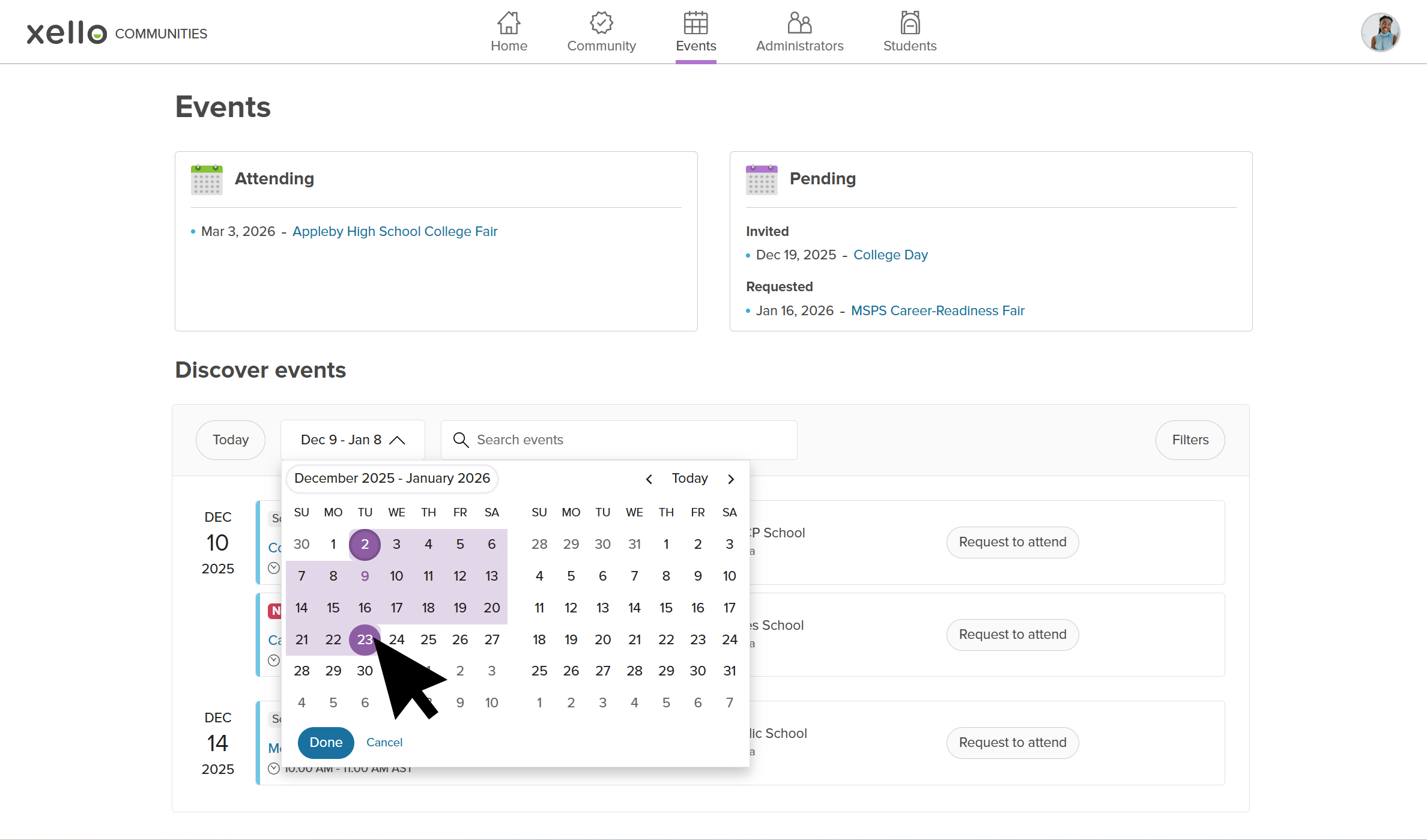
Click Request to attend to send a request to the event’s host. They’ll receive notification of your request and confirm or deny.
If you want more information on an event before sending a request, click the event name to open that event’s details, including who is hosting it, which college partners are attending, the date and location, and which grades have access. You can also RSVP from this detailed page.