2 minutes
For students who have shown interest in your institution and have opted to share their information, you can view a snapshot of their Xello profile and the interactions they’ve had with your Community posts. In the top menu, click Students to open the list of students who have shared their information.
 FYI: The email registered with College Connect in Xello will receive notification when students have opted to share their data.
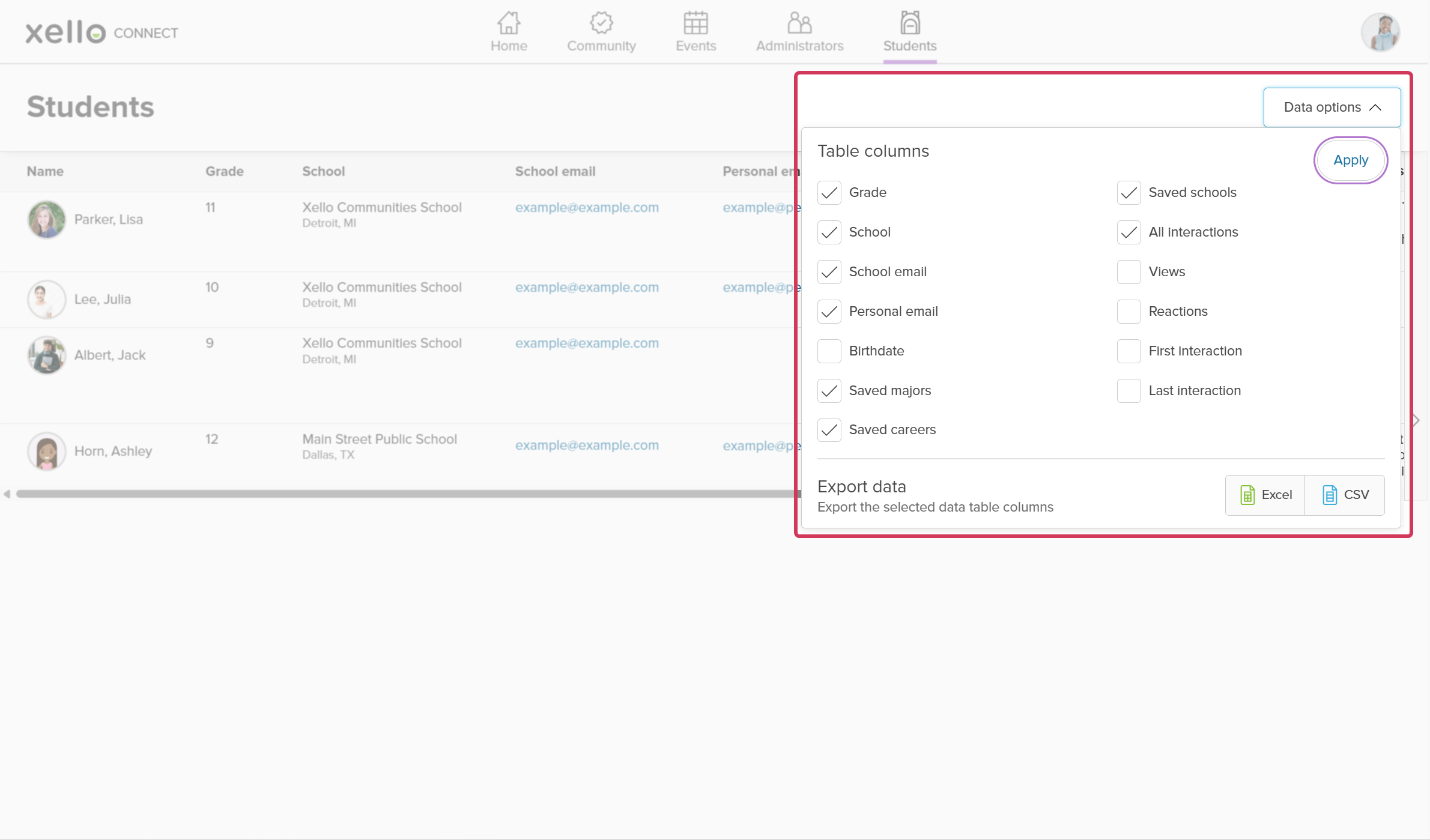
On the Students page, you can view the following information:
- Student name
- Grade
- School
- School email
- Personal email (if applicable)
- Birthdate
- Saved majors
- Saved careers
- Saved schools
- All interactions (number of interactions they’ve had with posts, including reactions and views)
- Views (number of times they’ve opened Community on the college profile)
- Reactions (number of reactions they’ve had to your posts)
- First interaction (date of their first interaction with one of your posts)
- Last interaction (date of their latest interaction with one of your posts)
To add or remove columns in the student table, click Data options and select the columns you’d like to view and click Apply. You can also export the table to Excel or CSV.