5 minutes
Get prospective students excited and engaged with your institution by creating posts about clubs and activities, a day in the life, or upcoming events and deadlines. Try to give students a sense of what it will be like for them to attend your institution, or helps them with the next steps of their college search.
Students will see and be able to react to your posts from a number of different places. Once they like your institution, your posts will show on their dashboard feed, the first page when they log in. When they open Explore and click Communities, your post could show in the Recommended for you section. And while on the college profile page, they can view the post in the Community section.
 Tip: To learn more about the student experience, check out How students connect with colleges and How students explore events.
Tips for content
When creating a Community post, make sure your content is accessible to a wide range of students. Here are some tips to consider while crafting your post:
- The content is appropriate for students in 6th-12th grade
- The reading level closer to 6th grade
- The content is easily understood; don’t use acronyms or inaccessible slang
- Current information but with lasting relevance
- Able to meet any of these:
- Informative
- Authentic
- Fun or surprising
- Inspiring
- Interactive
- Digestible
- Thought-provoking
Idea starters
To help make sure your post is engaging and students interact with it, here are some ideas for your posts:
- Athletics, clubs, or activities at the school
- Showcases of campus facilities or housing, and local communities
- Graduate testimonials
- Interesting facts or history notes
- A day in the life of current students
- Tips, how-tos, and FAQ for new students
What content to avoid
Xello is a safe space for all students. It’s important to make sure your posts will make your students feel comfortable. Be sure to avoid content that:
- Would be unacceptable for a classroom
- Is repetitive or could be considered spam
- Includes swears or curses
- Promotes violence, alcohol use, smoking, etc
- Is sexual in nature
- Is mean-spirited or demeaning
- Could be seen as promoting a political, social, or ideological agenda
- Could easily be interpreted as giving a platform to a divisive topic
 Back to top
Create a post
Now that you have engaging content for prospective students to engage with, it’s time to create a post and get students excited!
To create a post:
- In the top menu, click Community.
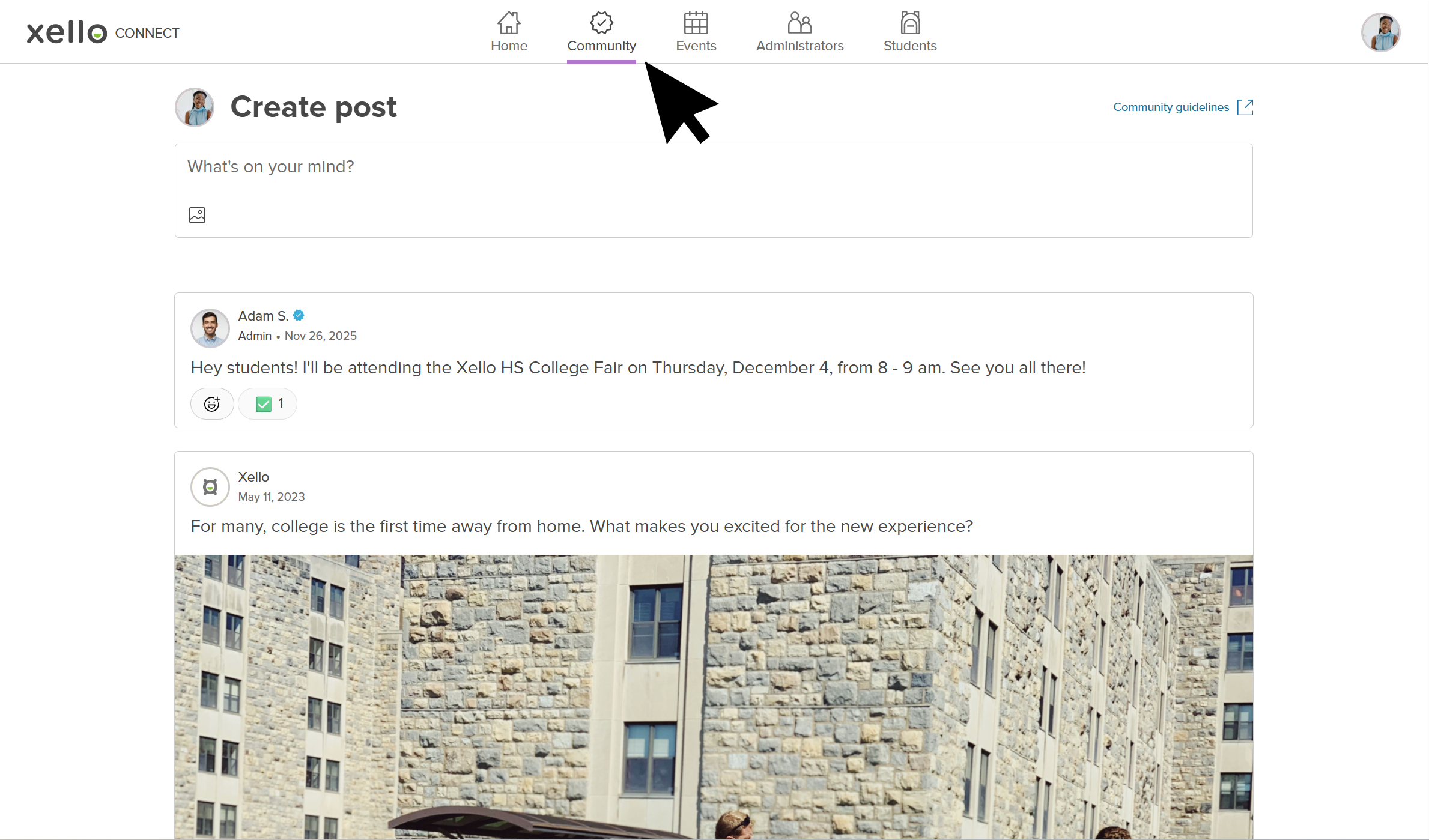 Click to enlarge
- In the text box under Create post, type your content.
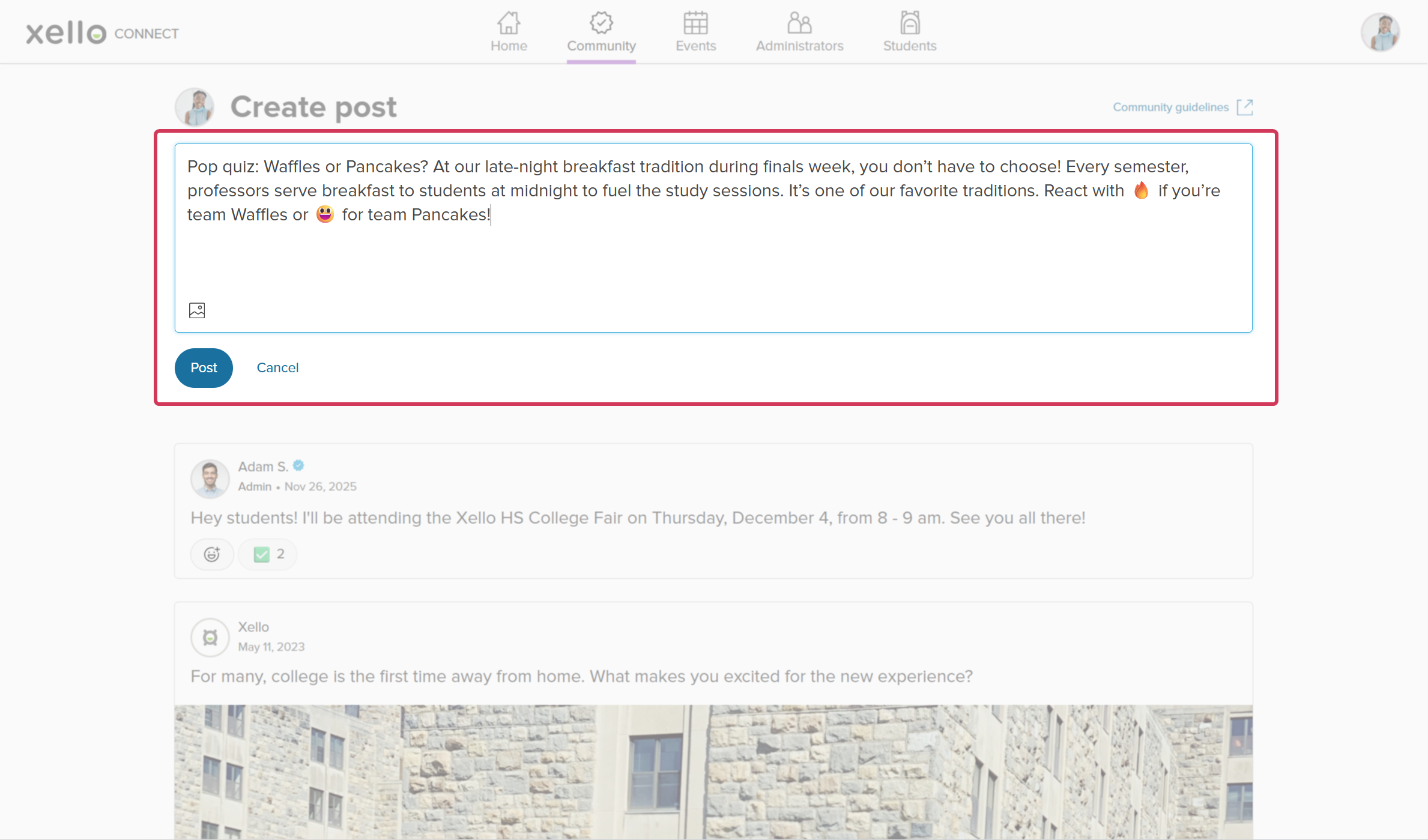 Click to enlarge
 Note: To keep it short, sweet, and engaging for students, there is a 500 character limit.
 - Optional: If you have an image you want to add, click the image icon. A window will pop up for you to drag and drop the image or choose a local file.
- Click Post.
The post will immediately show up on the college profile for students to engage with. For students who have saved the institution, the post will show at the top of their dashboard feed.