4 minutes
Just like how students can add a college application tracker to their list of college applications in Xello, you can add a tracker for them. This could be helpful when you're working one-on-one with a student to build their college applications, or to help ensure accurate record of where students are applying for tracking purposes.
For students, this will help them track their tasks, view their deadlines, request transcripts and recommendation letters be sent. Once an educator has added an application tracker for them, it will immediately show on the student's list of college applications with an Added by badge and the name of the educator. Students can still edit or delete any application you add, so they can correct or update information as needed.
Meanwhile, from their Xello Family account, parents/guardians will also be able to see the application and who it was added by.
Add an application to a student's tracker
Adding an application is done from the student's profile in Xello. Once you've added the application, you'll be able to view your addition, plus any applications added by other educators or the student.
To add an application to a student's tracker:
-
In the search bar located at the top of any page in your educator account, enter the student's name or ID.
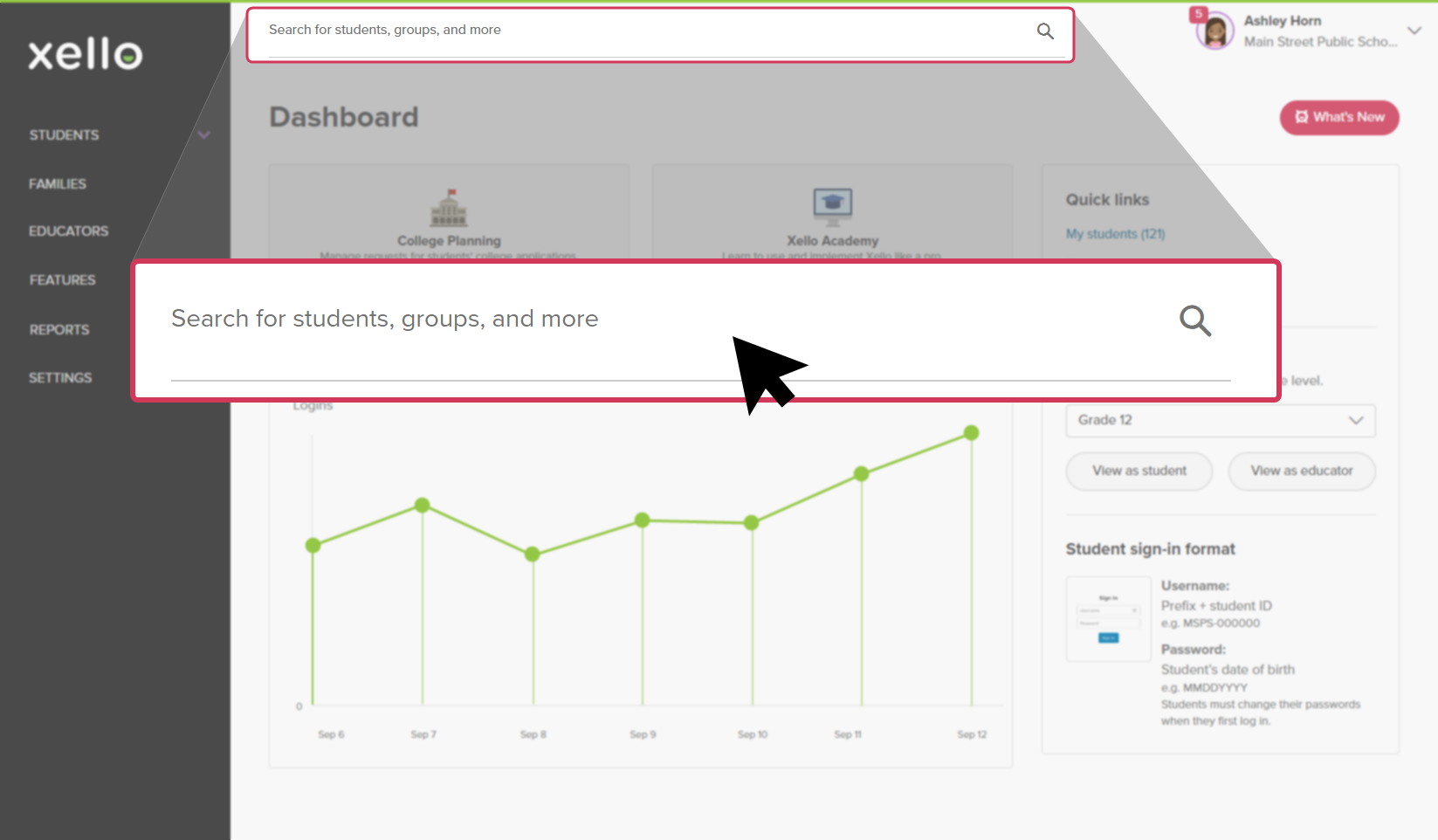 Click to enlarge
 Tip: Alternatively, from the left menu, click Students and select Student list to browse the full list of students.
 -
Click on the student's name. The About student tab of their profile opens.
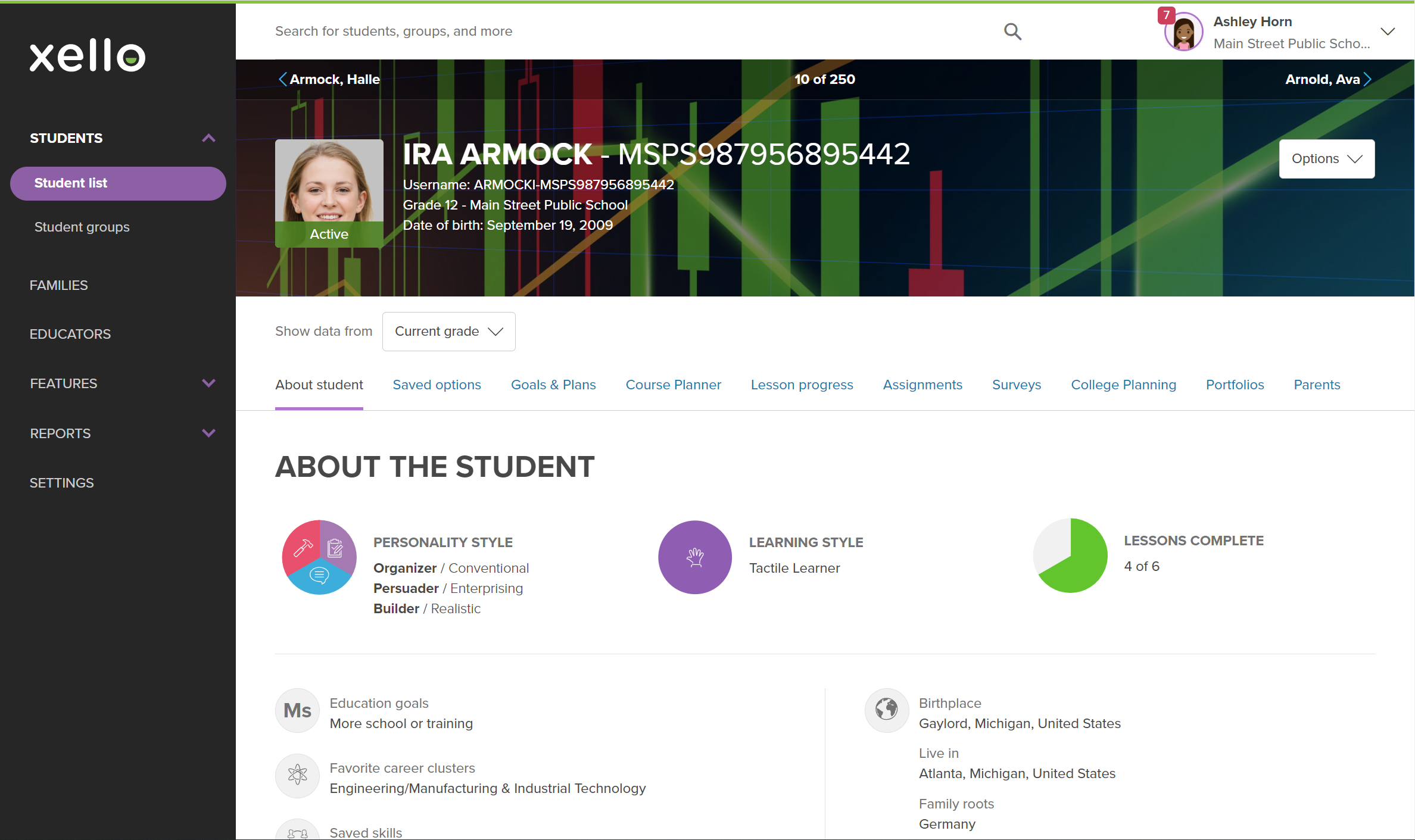 Click to enlarge
- Click the College Applications tab to open the list of applications they're tracking.
- Click Add application.
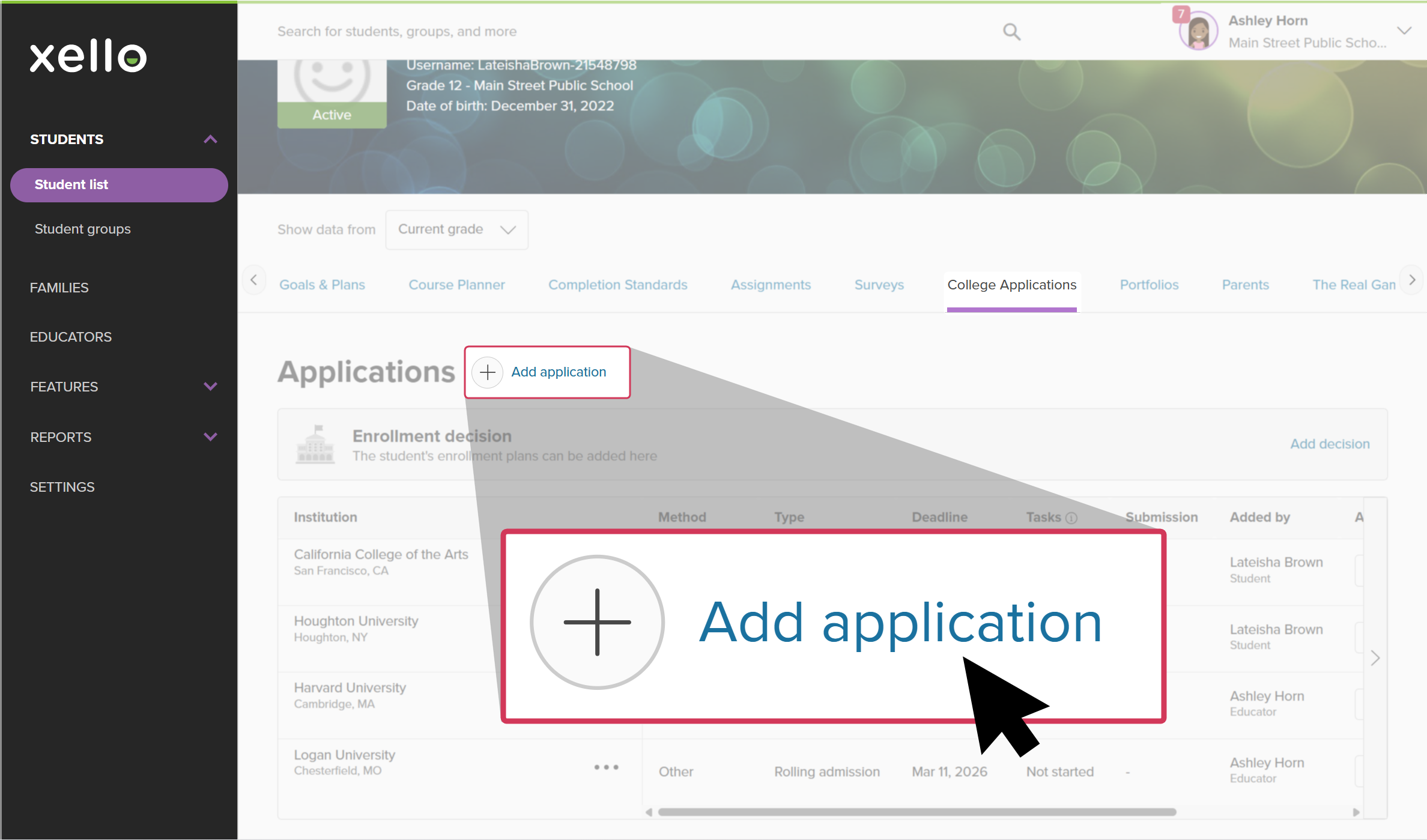 Click to enlarge
- Choose one of the student's saved schools and click Next.
- If the student doesn't have any saved schools yet, search for the institution and click Select, then Next.
- Select an application method and admission type. If available, the application deadline will automatically populate.
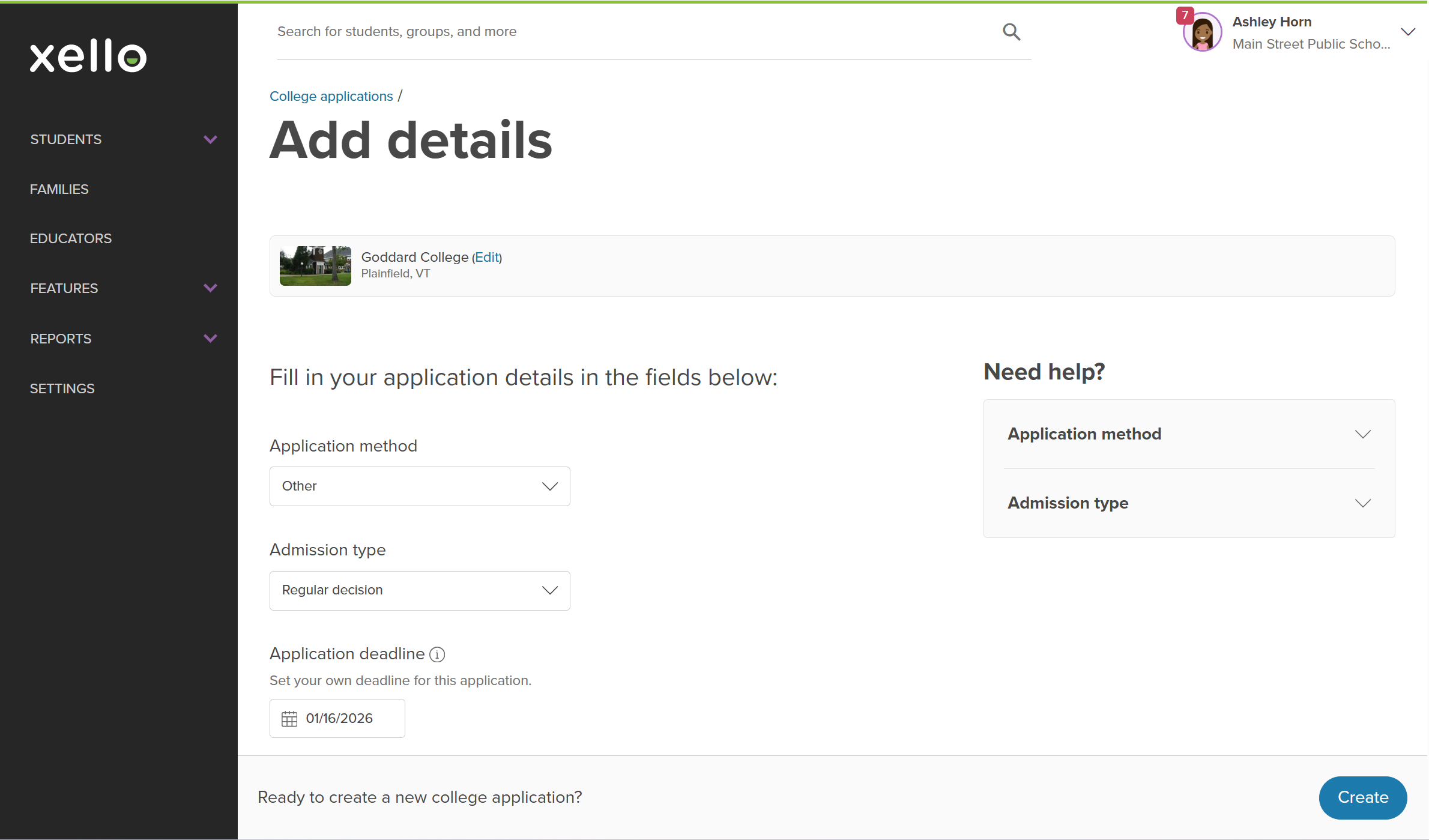 Click to enlarge
- To finish building the application tracker, click Create.
- The new application will immediately show in the list of the student's applications with your name in the Added by column. Other educators, the student, and their parents/guardians will see that you added the application.
 Back to top
Edit or delete educator-added applications
Once you have added an application, you can make changes. You can edit the application method, admission type, or deadline, or delete the application entirely, as long as you were the one who created it. You cannot edit or delete applications that were added by the student, another educator, or is a synced Common App application. These will be indicated with a locked symbol.
To edit or delete an application you added:
-
In the search bar located at the top of any page in your educator account, enter the student's name or ID.
Click to enlargeTip: Alternatively, from the left menu, click Students and select Student list to browse the full list of students.
-
Click on the student's name. The About student tab of their profile opens.
Click to enlarge
- Click the College Applications tab to open the list of applications they're tracking.
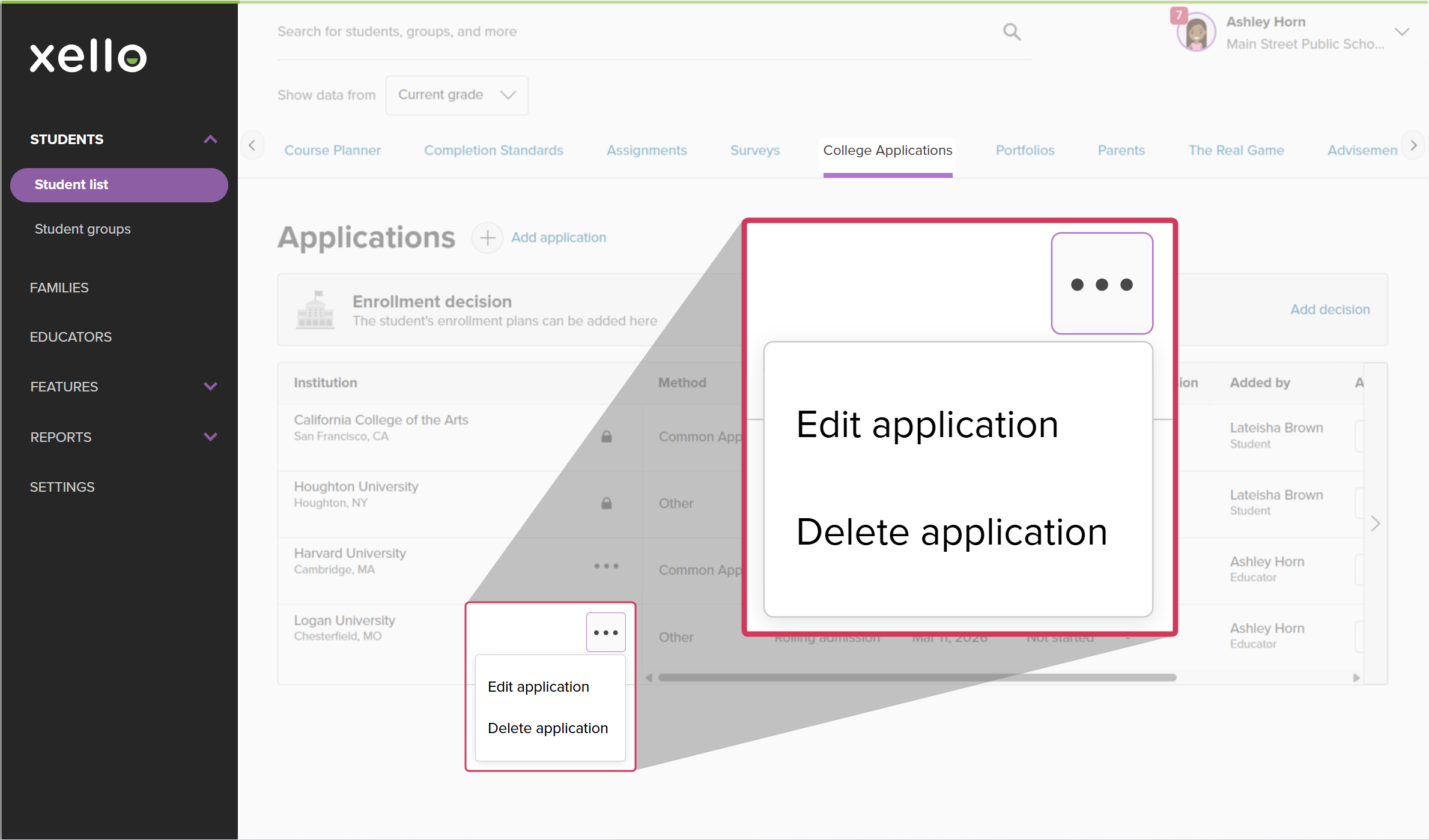
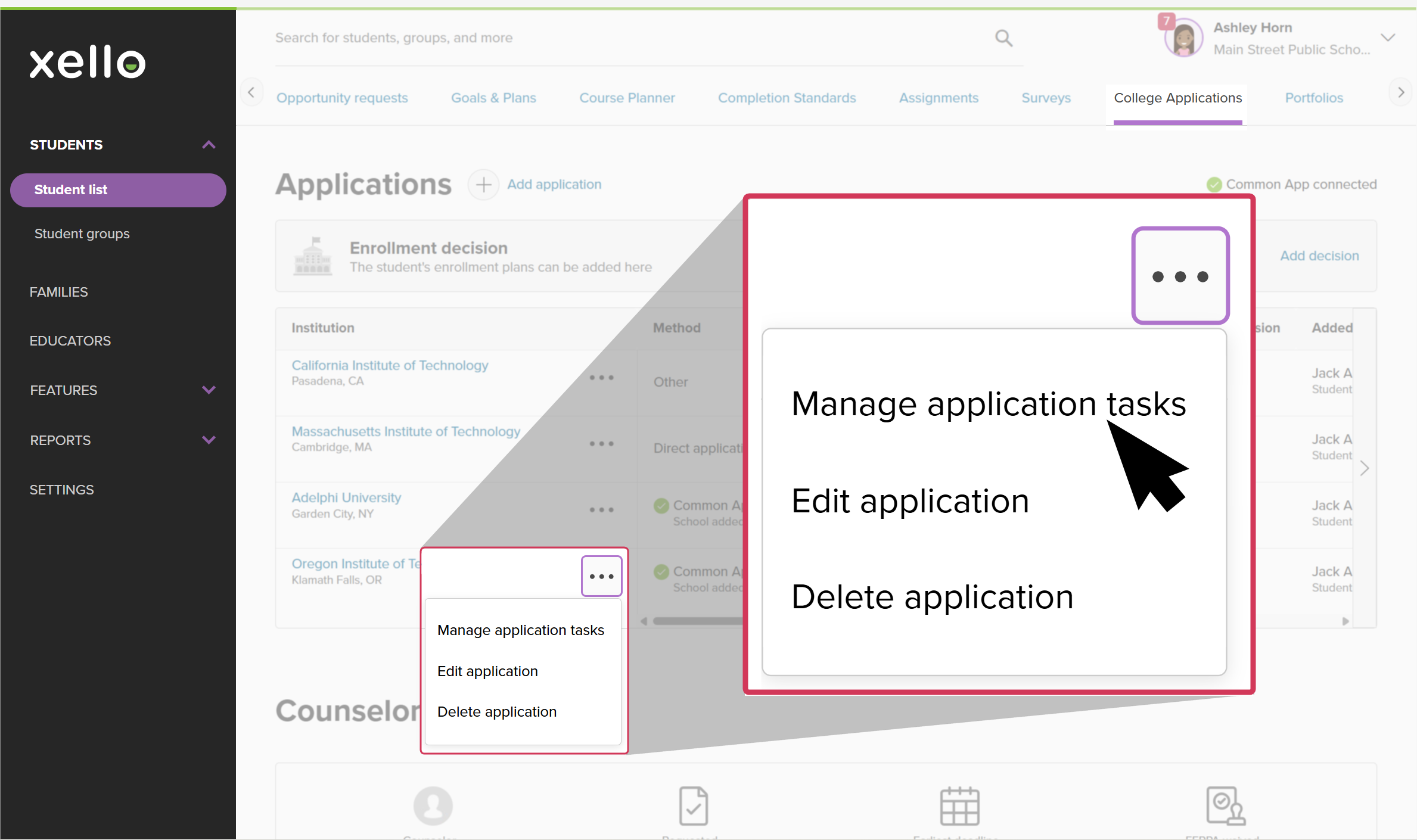
- Locate the application you want to edit or delete, and click the three-dot menu.
 Click to enlarge
- To edit, click Edit application. Make your changes and click Save.
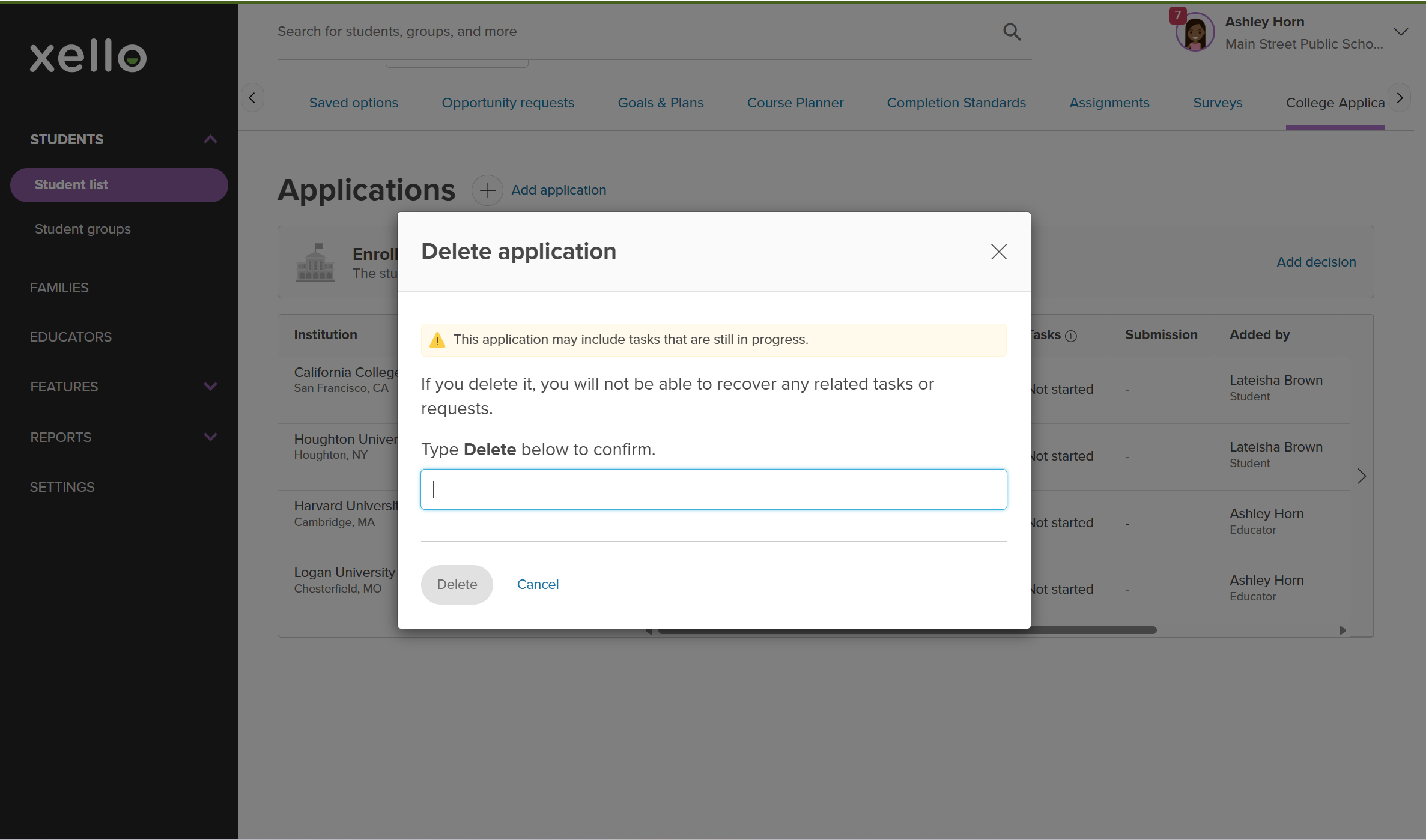
- To delete, click Delete application. You'll need to confirm that deleting this application means you won't be able to recover any related tasks or requests. Type Delete to confirm, and click Delete.
 Click to enlarge
Manage application tasks for a student
In addition to adding an application for a student, you can use their application tracker to complete application tasks on their behalf. This includes requesting transcripts, requesting letters of recommendation and teacher evaluations, and marking tasks as complete or incomplete. While the student has to add schools to their own Common App account, you can use Xello to assign yourself or another educator as counselor to complete the necessary forms.
To request application documents for a student:
-
In the search bar located at the top of any page in your educator account, enter the student's name or ID.
Click to enlargeTip: Alternatively, from the left menu, click Students and select Student list to browse the full list of students.
-
Click on the student's name. The About student tab of their profile opens.
Click to enlarge
- Click the College Applications tab to open the list of applications they're tracking.
- Locate the application with tasks you want to complete, click the college name or the three-dot menu and select Manage application forms.
 Click to enlarge
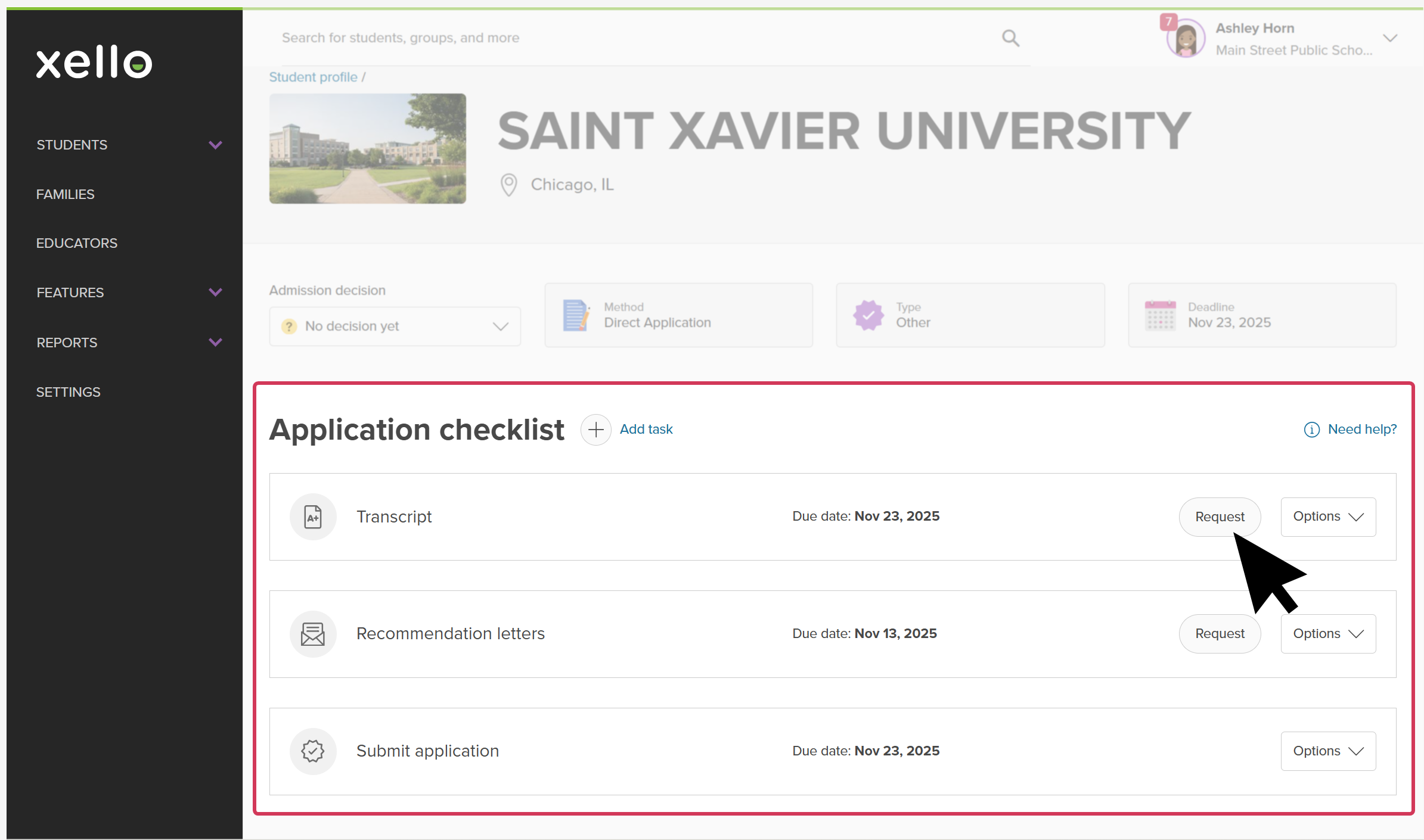
- This opens the application details page. View high-level information like the student's admission decision, the delivery method for the application, the application type and deadline.
- Under Application checklist you can request or manage a transcript or letter of recommendation, mark the submission as complete, and where applicable request a counselor for a Common App school.
 Click to enlarge
- Any updates you make will immediately be visible in this application tracker to other educators. Students will also see the updates marked with your name in their own Xello account.
Check out this short walkthrough on how to manage application tasks on behalf of students:
Additional resources
-
 Recording
recordingManaging students' college applications in Xello New
Recording
recordingManaging students' college applications in Xello NewCheck out this short walkthrough to learn how to request college documents on your students' behalf.
-
Recording
recordingCollege Application manager overview
Check out this overview to learn how educators can efficiently manage all student college application requests, transcripts, and recommendation letters from the College Application manager.
-
Recording
RecordingStreamlining college applications: A guide to success
Master college applications with Xello! Help students track deadlines and document requests. Learn educator workflows for seamless transcript and recommendation letter management and Common App fulfillment.
-
 PDF
PDFTranscripts quick guide
PDF
PDFTranscripts quick guideUse this quick guide to learn how to complete transcript requests from students, including how to import, send, and track the progress of the transcript.
-
PDF
PDFCommon App guide
Use this guide to learn how students use Common App in Xello, and how you set up a Common App profile, complete student requests, track their progress, and more.
-
 Xello Academy
Managing Transcripts through Xello
Xello Academy
Xello AcademyManaging Transcripts through XelloIn this course, you'll learn to import and view student transcripts; view and fulfill transcript requests; track their progress; and feel confident in helping students request transcripts in their college application journey.
-
Xello Academy
Xello AcademyXello + Common App for Counselors
If you're a counselor at a school that uses Common App, then you'd benefit from this course. You'll understand your role in the process, as well as steps for teacher recommenders and students.