2 minutes
There are two roles that a Community manager can be assigned: Admin or Ambassador. Both roles are equipped to handle the day-to-day engagement with students, including making posts and viewing interactions. Admins can also assign or remove community members.
Invite a new member
Admins can invite a new member to help with posts and events, furthering engagement with students.
 Note: Only an Admin can invite a new member. You won't see the option to invite a new member if you don't have Admin permission.
To invite a new member:
- In the top menu, click Administrators to open the list of all community managers.
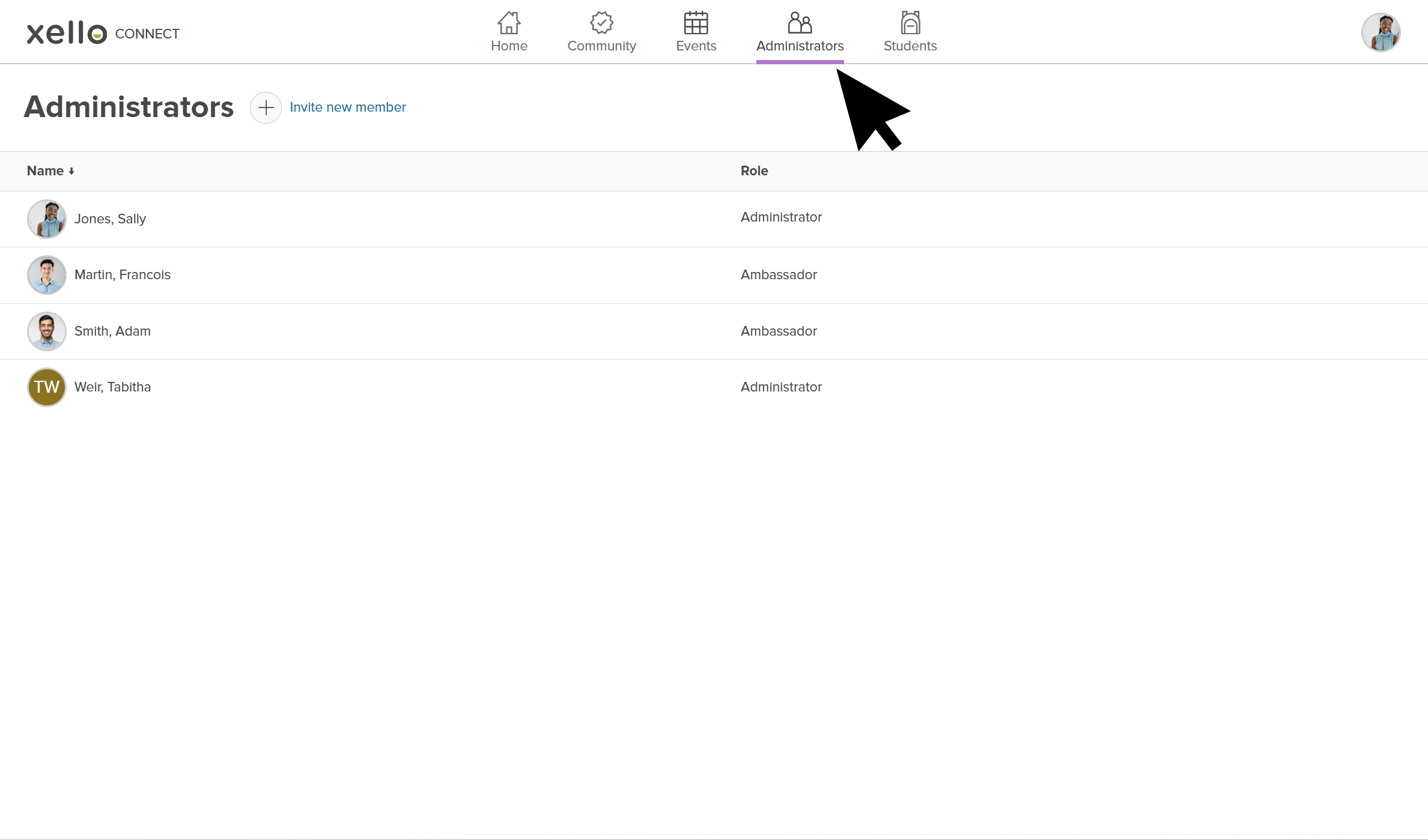 Click to enlarge
- Click Invite new member.
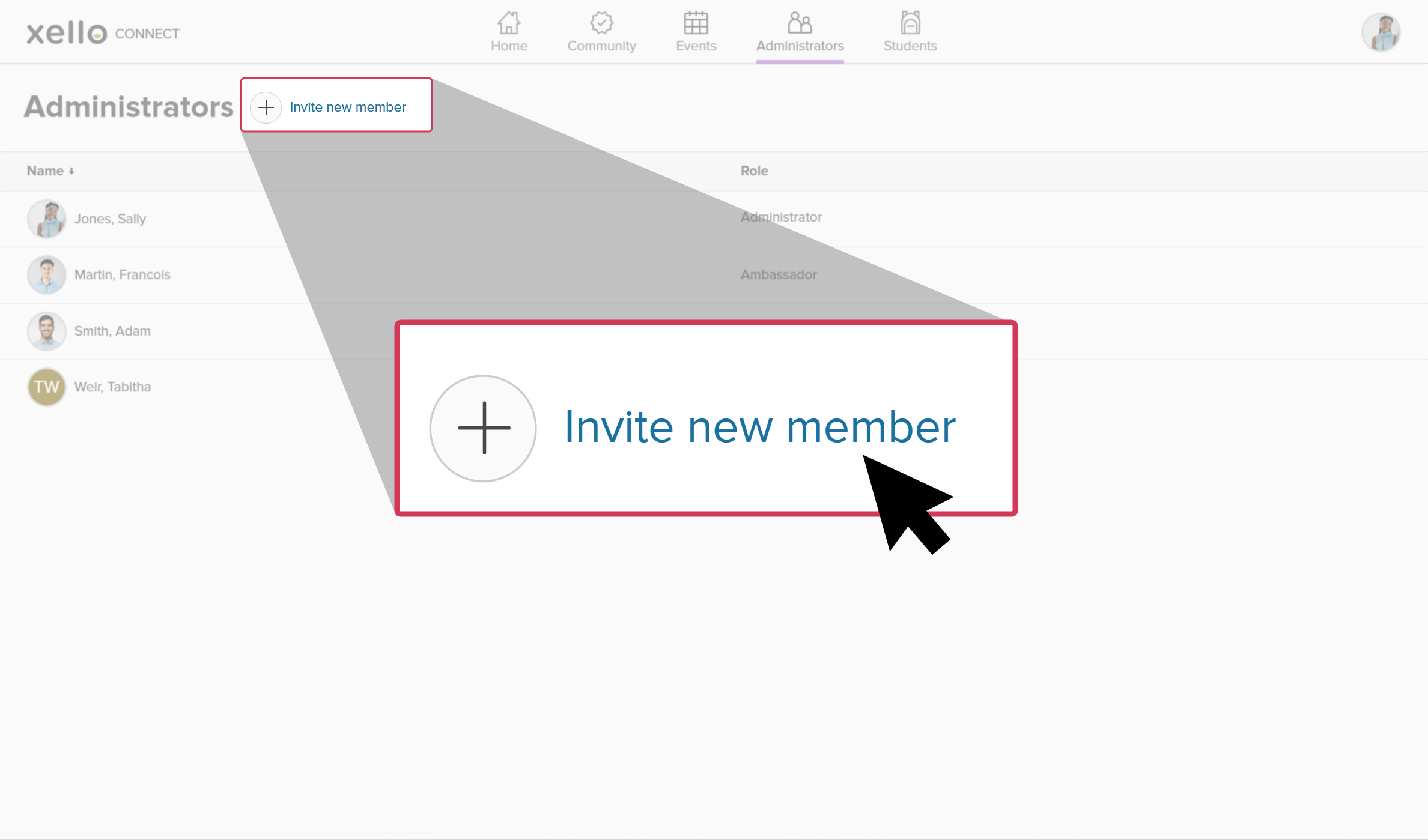 Click to enlarge
- Add their email address. Click Next.
- Add their first and last name. Click Next.
- Choose a role between Administrator and Ambassador.
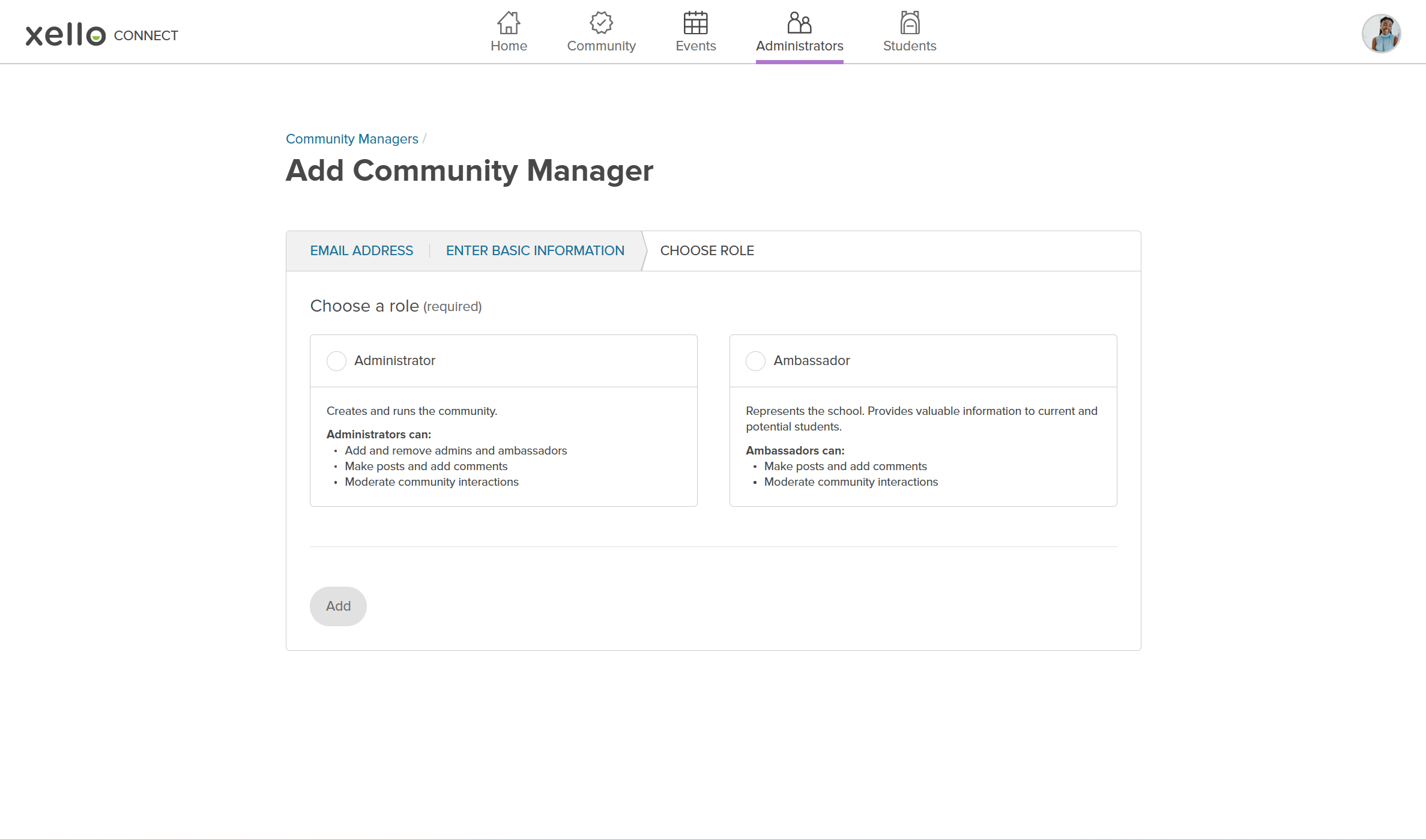 Click to enlarge
- Click Add.
- They’ll receive an email with the invitation to join.
 Back to top
Change a Community manager’s role
To change a community manager’s role:
- In the top menu, click Administrators to open the list of all community managers.
Click to enlarge
- Click the name of the manager you’d like to update.
- Select the role you want to give them between Admin and Ambassador.
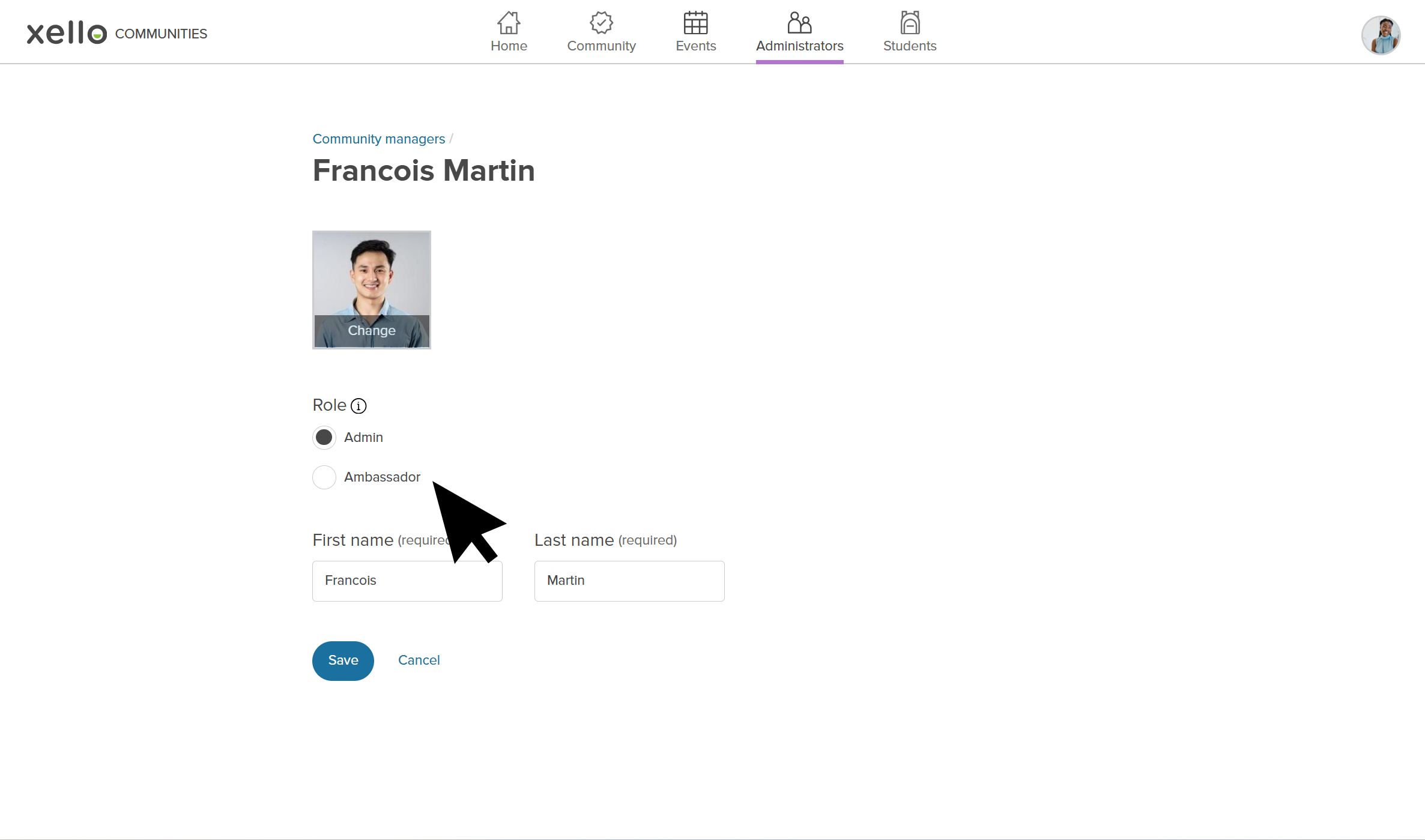 Click to enlarge
- Click Save.