3 minutes
Not all students want to head straight into a four-year college program. That's where Plans in Xello comes in. With different pathways such as apprenticeships, going straight to work, joining the military, or college or university, all students can feel prepared for what happens next.
 Tip: To help introduce Plans in Xello to your students, download and share this quick guide: Plans in Xello (also available in Spanish). Add it to an Assignment or send it in a message.
Access their plans
Students access the Plans feature by clicking Plans in the top navigation.
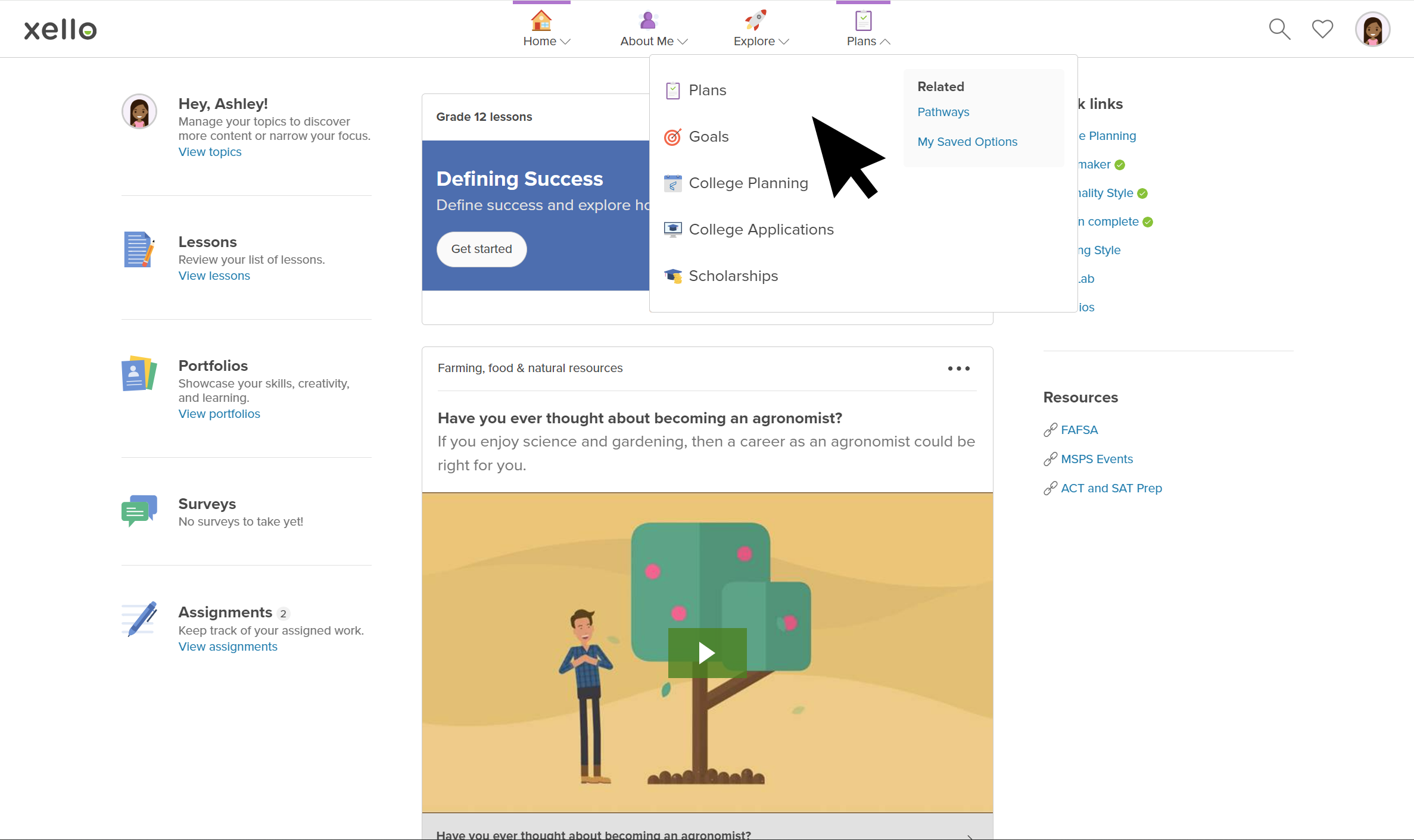
Choose between a career or education path
When students start making a plan, they can choose to begin with a Career or pick a path they want to take after
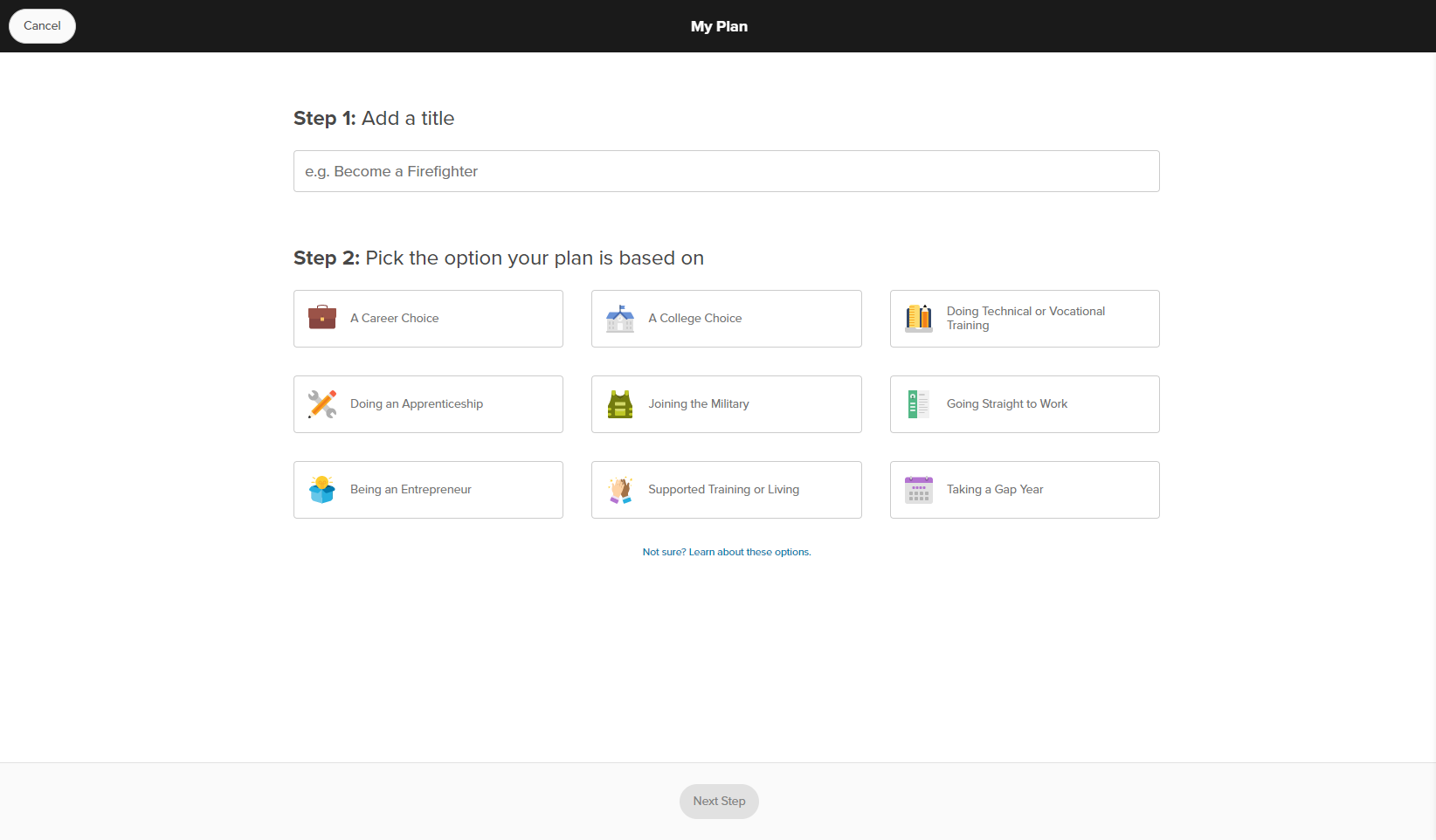
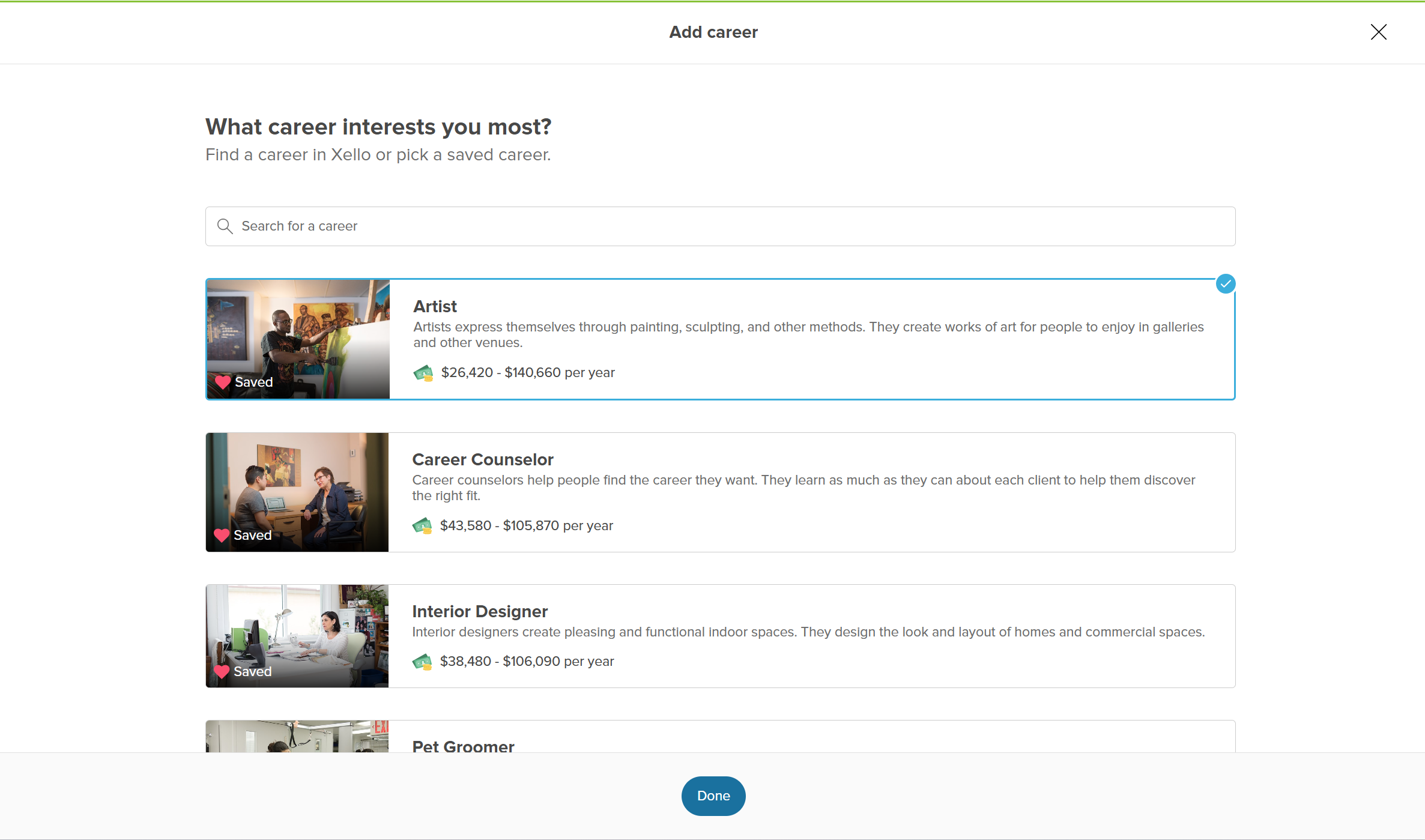
If students choose to start with a career, they'll pick one of their saved ones. If they haven't saved any careers, or they want to build a plan for a new one, they can search to find it. After they chosen a career and clicked Done, their plan is in the works!
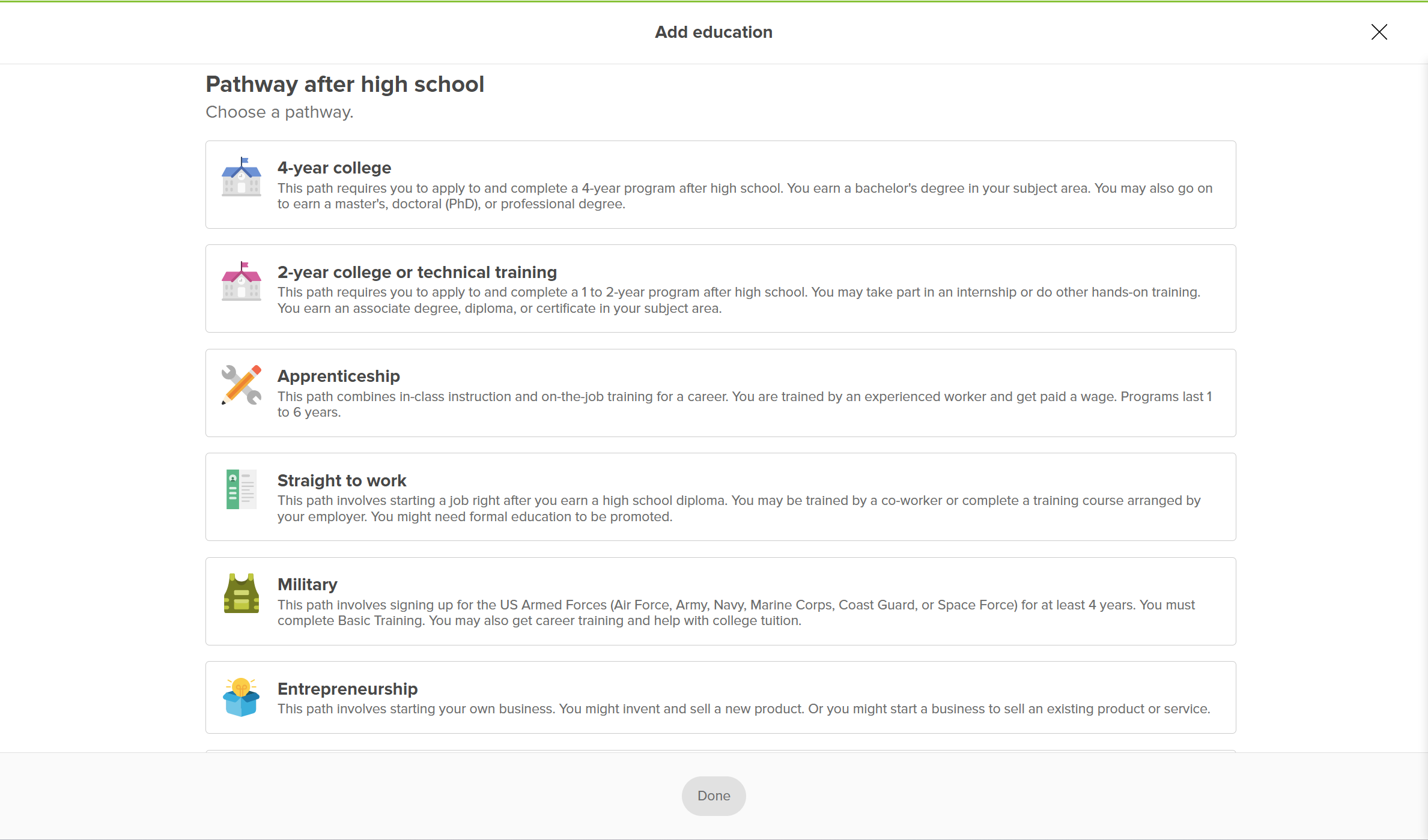
If they choose to start with education, the next page will be a list of pathways they can choose from after they've finished
A helpful Learn more about pathways link at the bottom of the list will open brief explanations of each pathway, plus a chance to read a full profile. They'll be able to watch a short video, view sample careers typical to that pathway, and view any finances or education required.
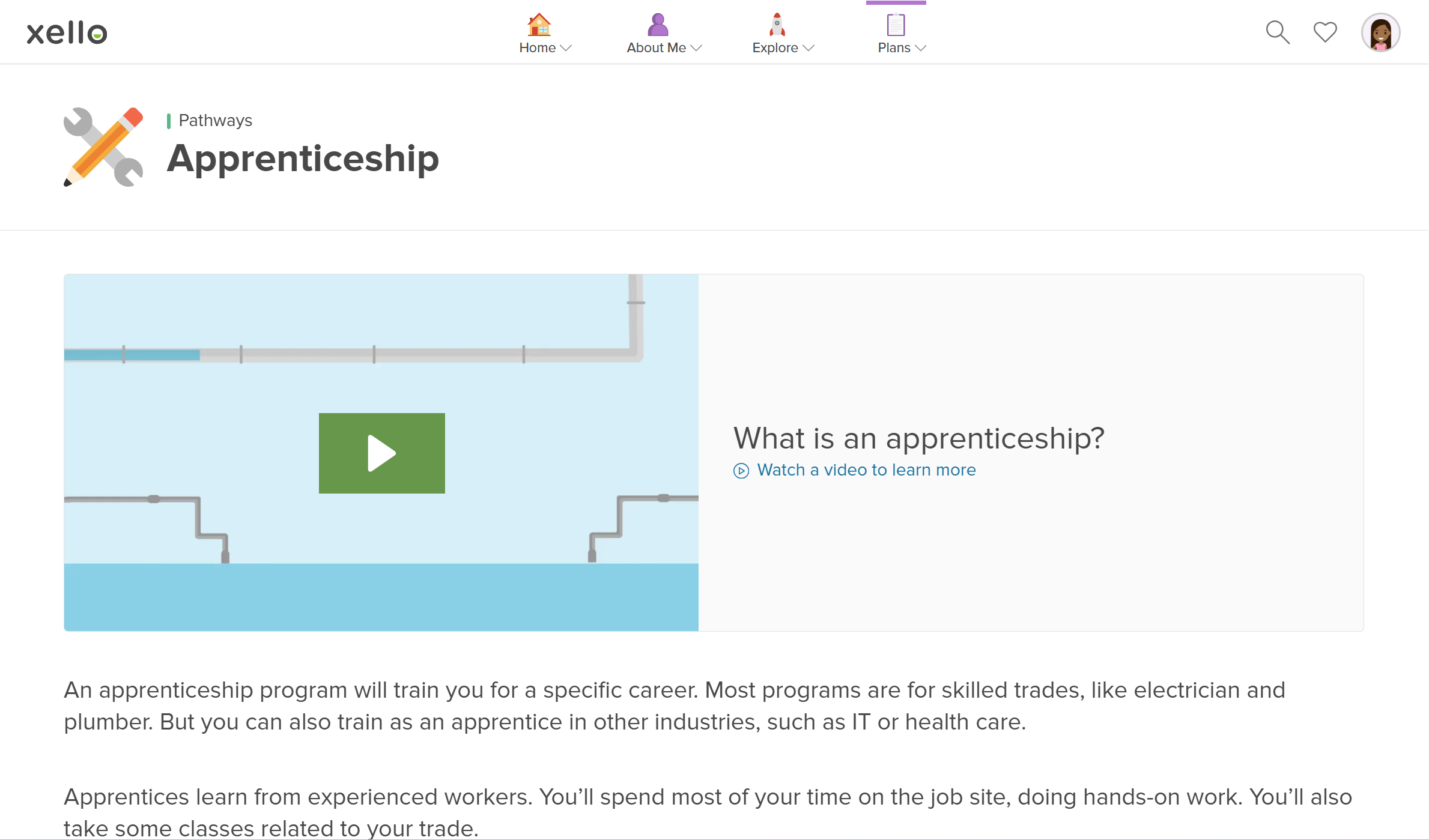
Depending on the pathway they choose, they'll be prompted to add more information. For example, if they choose
Build out their plan
Now they can add more steps to their plan. If they chose education as a starting point, here's where they'll be able to add a career. Alternatively, they can add a pathway to a career plan.
Each plan comes populated with a To-do list to remind students that even a big plan for what to do after

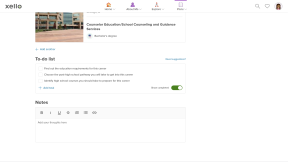
To help
 Back to top
Rank their plans
Encourage students to return to their plans or build new ones as they learn more about themselves, explore careers and schools, and complete the tasks on their list. As they create more plans, they'll be prompted to rank them. This helps them to prioritize the plans they most want to achieve, promotes intentional decisions, and helps show educators what their students are most interested in.
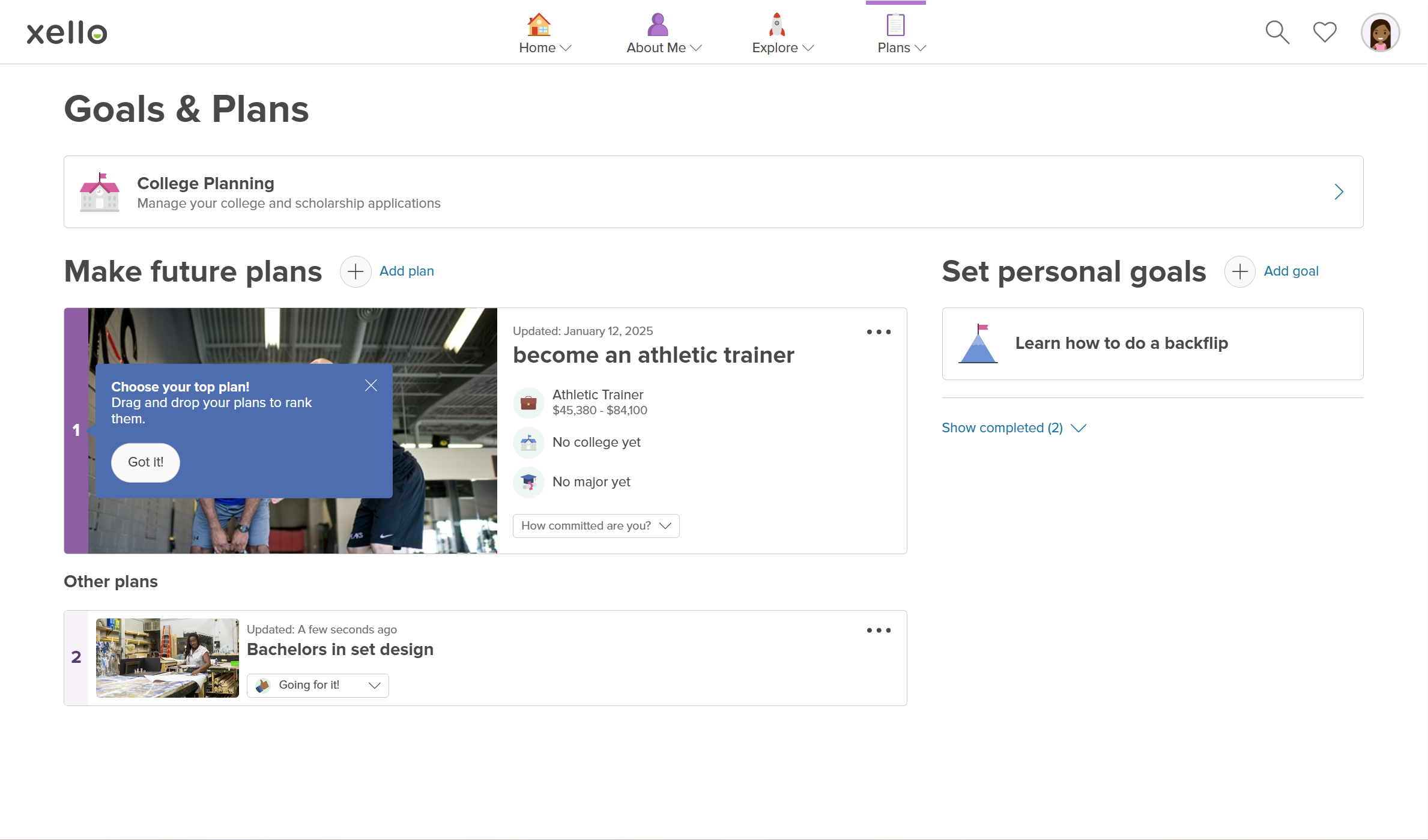
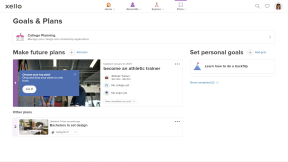
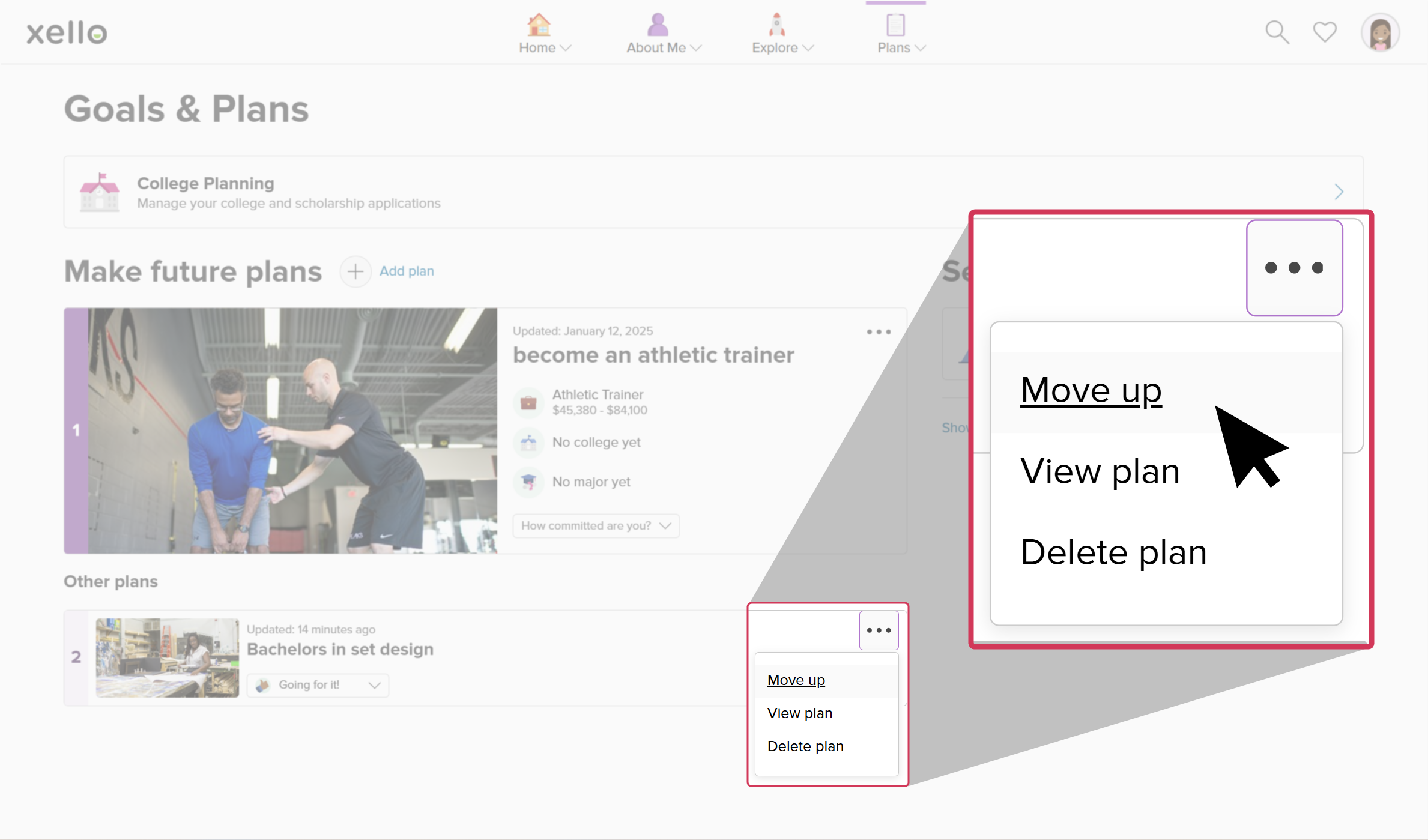
To rank their plans, students can either drag the plan and move it to where they'd it in the list. Or they can click the three-dot menu and select whether they'd like to move it up or down on the list.
Additional resources
-
 Short video
short videoPrepare for your future with Plans - student video
Short video
short videoPrepare for your future with Plans - student videoHelp your students understand the choices that are available to them by exploring different pathways and creating an actionable to-do list.
-
 PDF
PDFPlans in Xello - student guide
PDF
PDFPlans in Xello - student guideThis guide will walk your students through how to use Plans in Xello.
-
PDF
PDFActivity lesson plan resource - My plans
Students learn about different pathways available towards their plan for the future. They consider which may be best for them even if they don’t know exactly what they want to do yet.
-
PDF
PDFInstructional Plan - Planning for the future
Students understand how making a plan can help them achieve their future goals, learn about different options and pathways, and set tasks to help them accomplish their plans.
-
 Recording
Xello 6-12 Plans: All students, all pathways
Recording
RecordingXello 6-12 Plans: All students, all pathways
 Select