7 minutes
While in Xello, students can view posts colleges have made with real-time updates and a chance to engage with reactions. Once a student has found a college they're interested in, they can show their interest by saving the college and providing a snapshot of their profile. If they want more information or have questions, they can use Xello to reach out to the college partner. Learn how students find colleges with Communities enabled, how they show interest, request more information, and how they manage when they share their details with a college.
Find a connected college
Students find connected colleges while exploring their options. They'll be able to view a college's College feed posts on the college profile. Here they'll see real-time updates and insights posted by the college. When they see a post, they can interact with an emoji to show their interest or excitement.
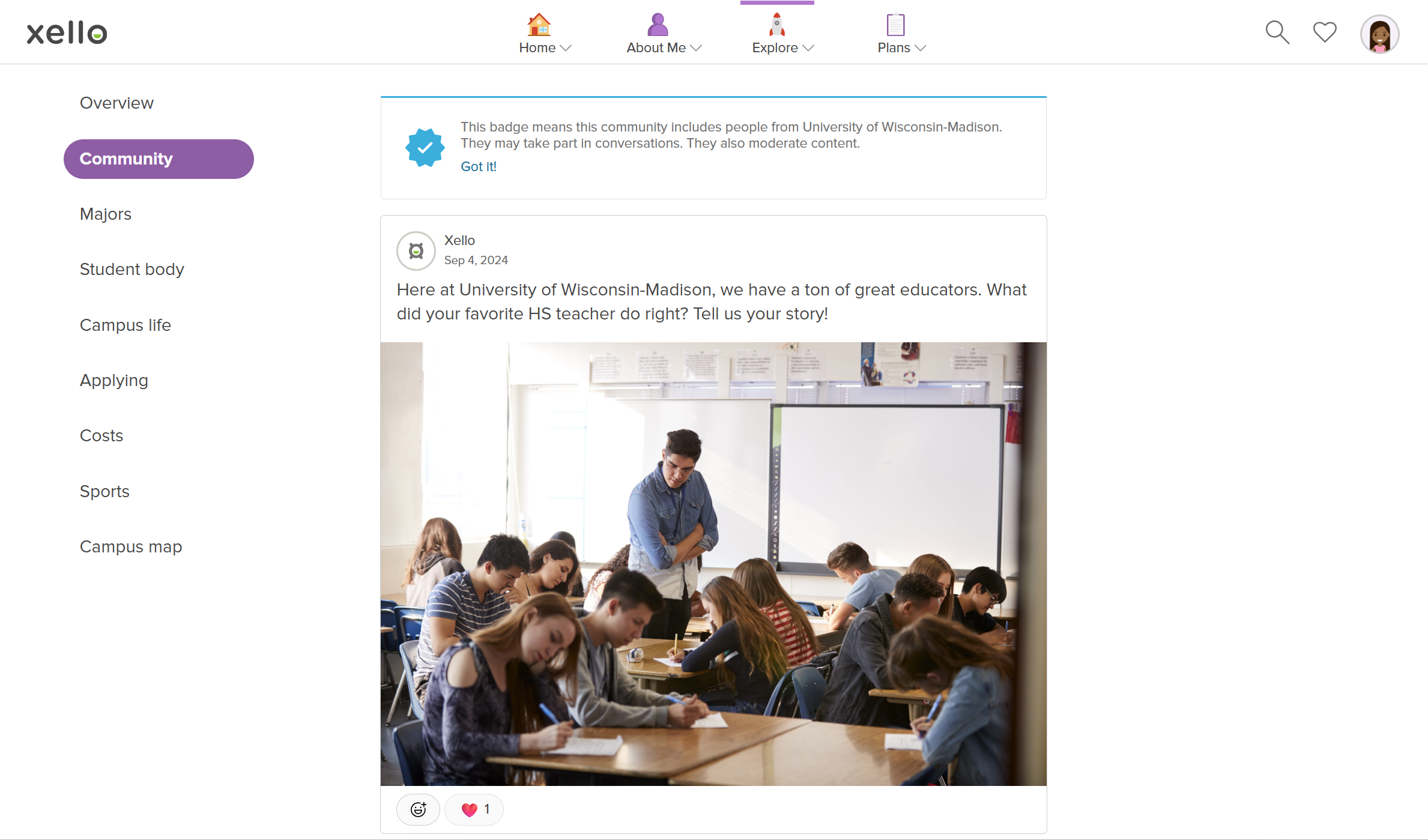
Once a college has posted something, that post will also appear in the dashboard feed for students who have shown interest in that college by saving it or requesting information.
Tell a college they're interested
To let college partners know they're interested in the school, students can share a snapshot of their profile.
There are two locations where a student can indicate they're interested: when they save a school while exploring colleges, or while they're on a school's profile.
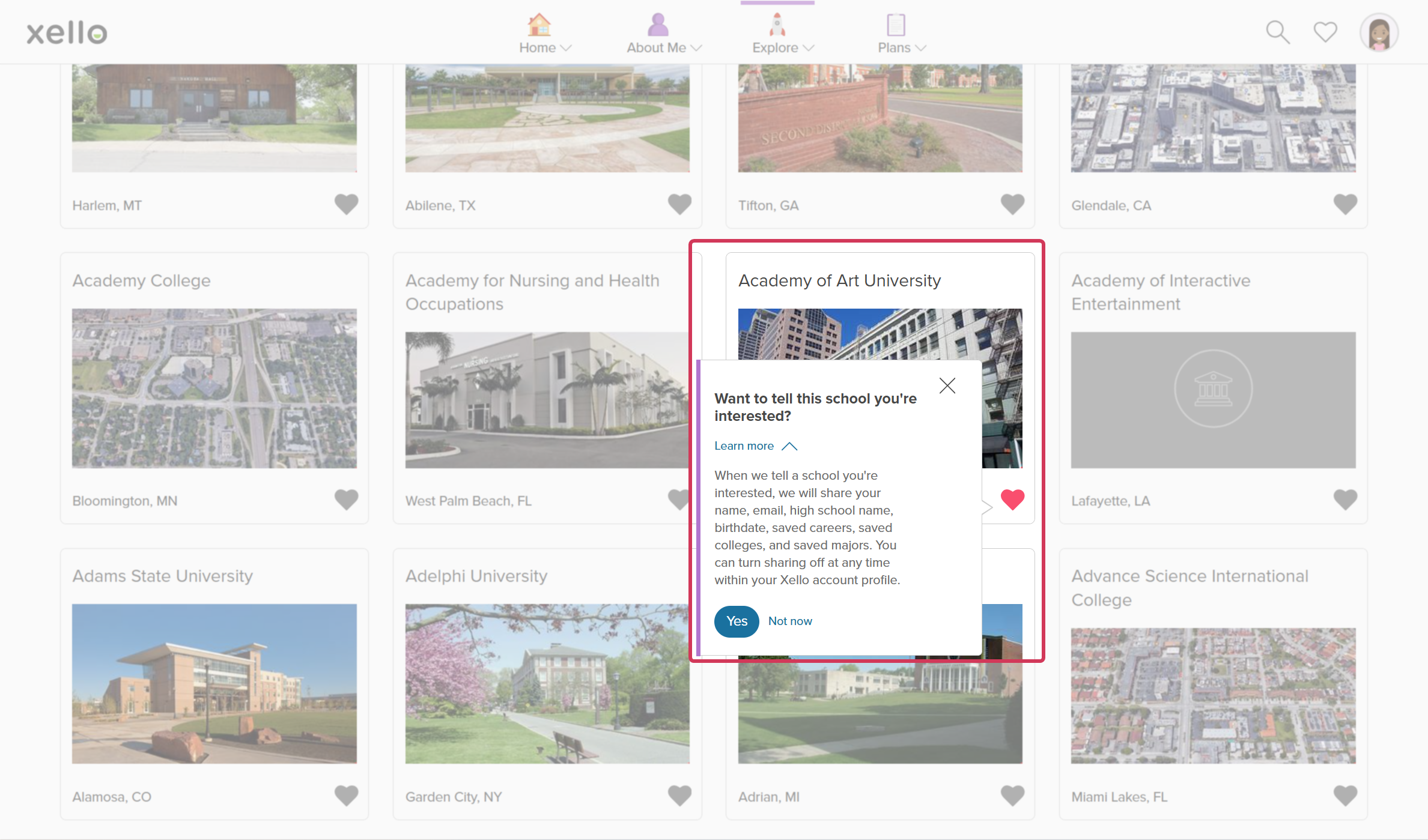
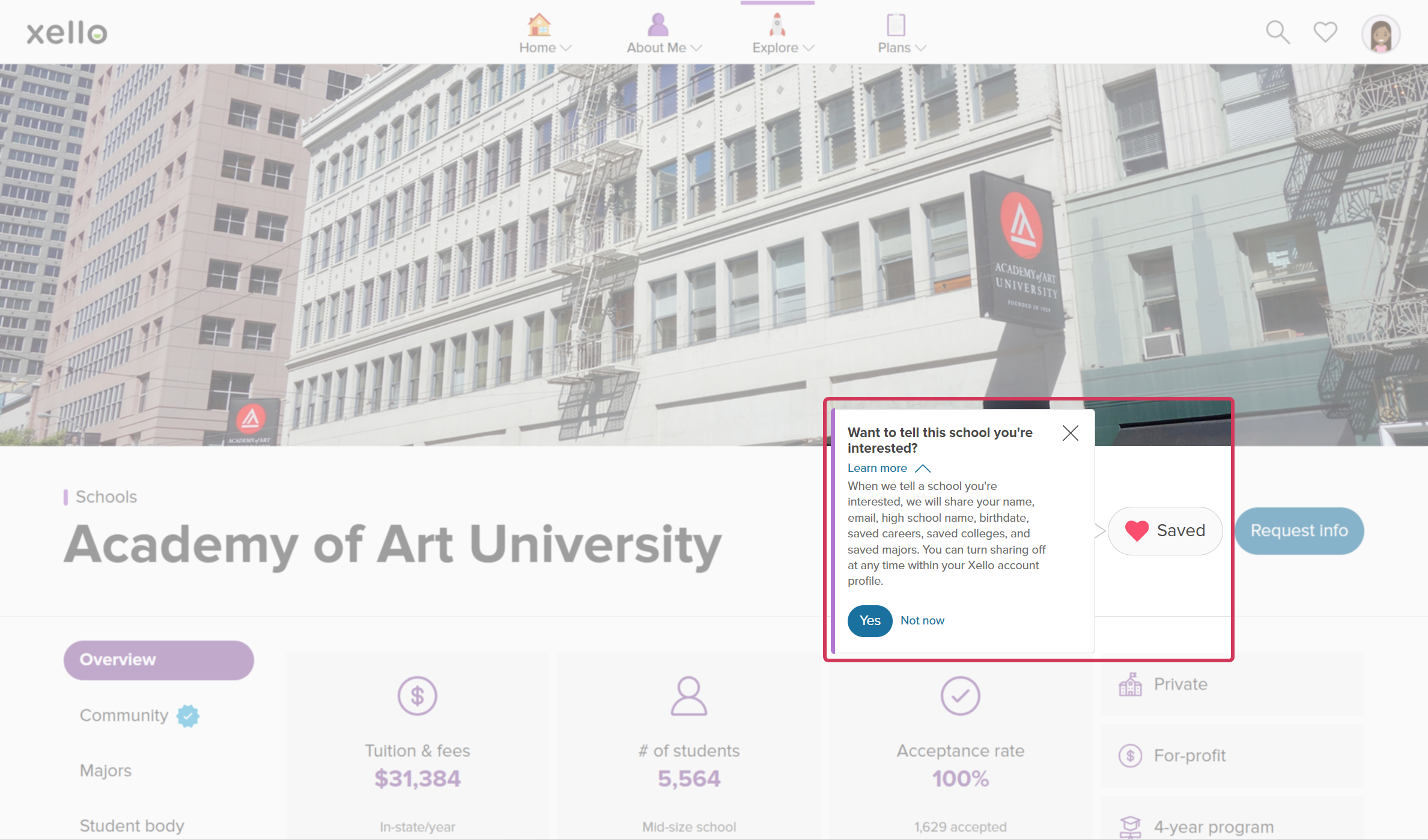
In either case, they click the heart to save the school. As they do, a pop-up will open asking if they want to tell the school they're interested. Clicking Learn more will let them know they'll be sharing the following information:
- Name
- High school name
- Birthdate
- Saved careers
- Saved colleges
- Saved majors
Clicking Yes will share the profile information with the college partner. Clicking Not now means the data is not shared with the college. After 30 days, the pop-up will return so students can opt in later. This way they don't miss out on any opportunities with the schools they've saved.
Students can quickly see that they've shared their information with a school by the green checkmark on the heart icon.
Request info from a college
Students can reach out to a connected college partner while exploring colleges in Xello. They may want to ask specific questions, or get on the college mailing list, or just show that they're interested in the college.
When they send a request for info, the student is required to add an email address and can opt to add a message. The college partner will receive an email from Xello which contains the student's email address and message (if applicable). The college partner can then continue communication with the student via email.
How students request information from a college:
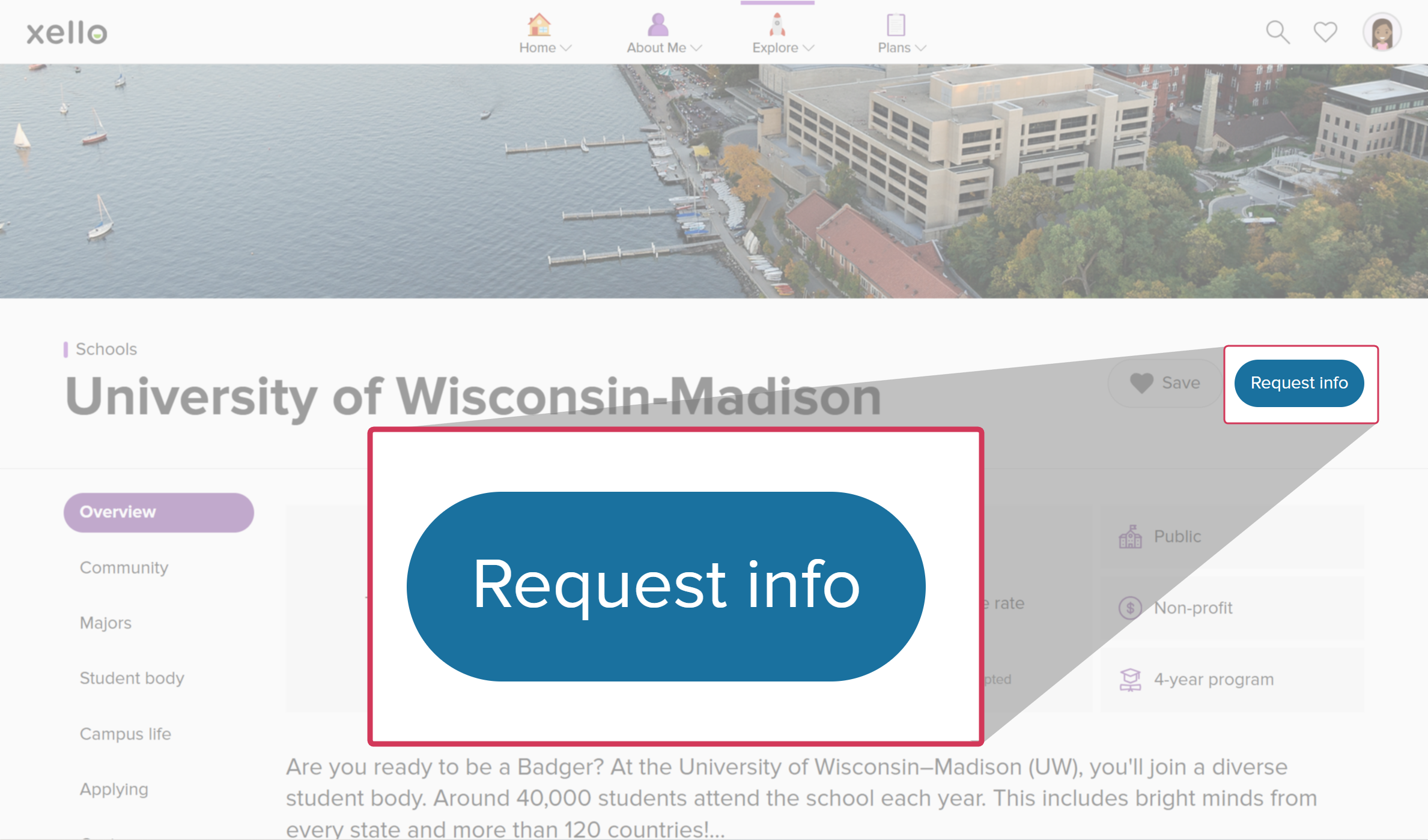
- They open a college profile with Xello Connect enabled.
- They click Request info.
 Click to enlarge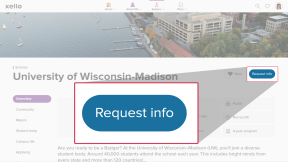
- In the modal that opens, they enter their email. If they'd like, they can add a short message. They can also opt to share their profile.
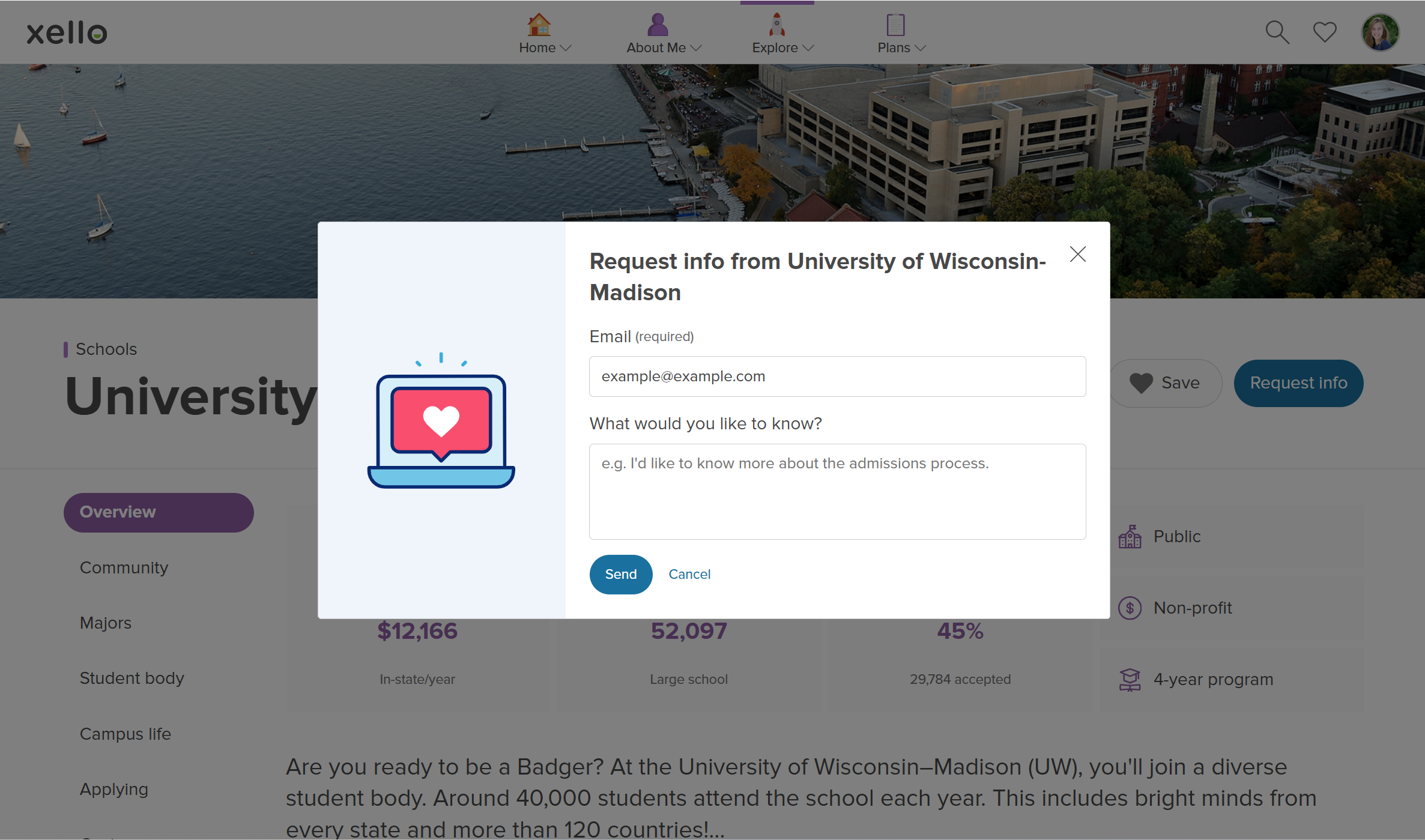 Click to enlarge
- They click Send.
- The request will send to the email address added by the college partner.
Manage their shared information
Students can view the list of colleges they've shared their information with. Because students remain in control of their data, if they no longer want a college to see their information, they can remove the college's access.
 Note: Removing the college stops them from viewing future updates in Xello. If the college has downloaded or saved the information previously provided, removing access in Xello does not remove the info from their internal database.
How students view and manage their shared profile with colleges:
- From any page in Xello, from the top right corner, students click their avatar and select Account.
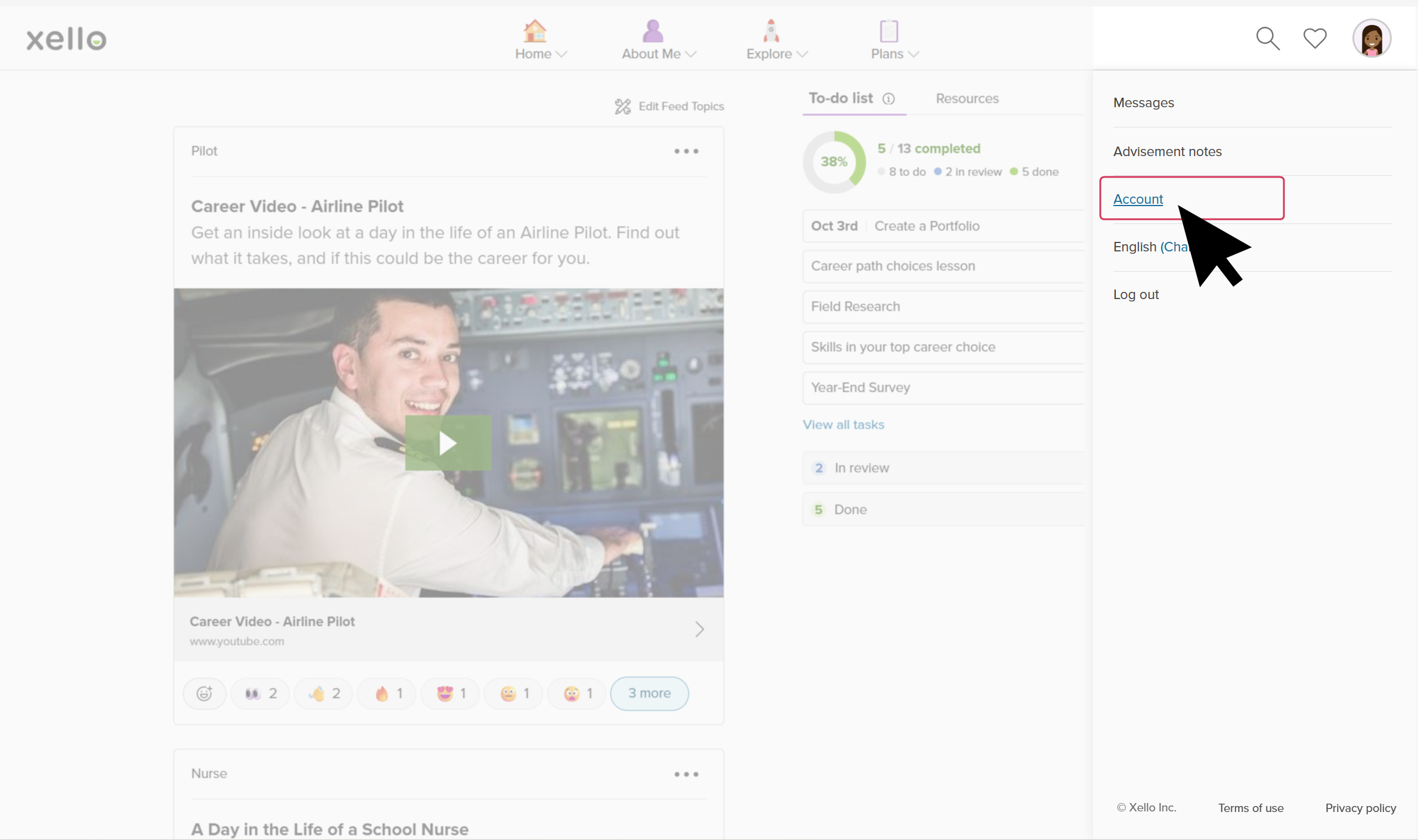 Click to enlarge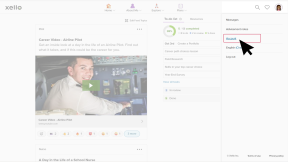
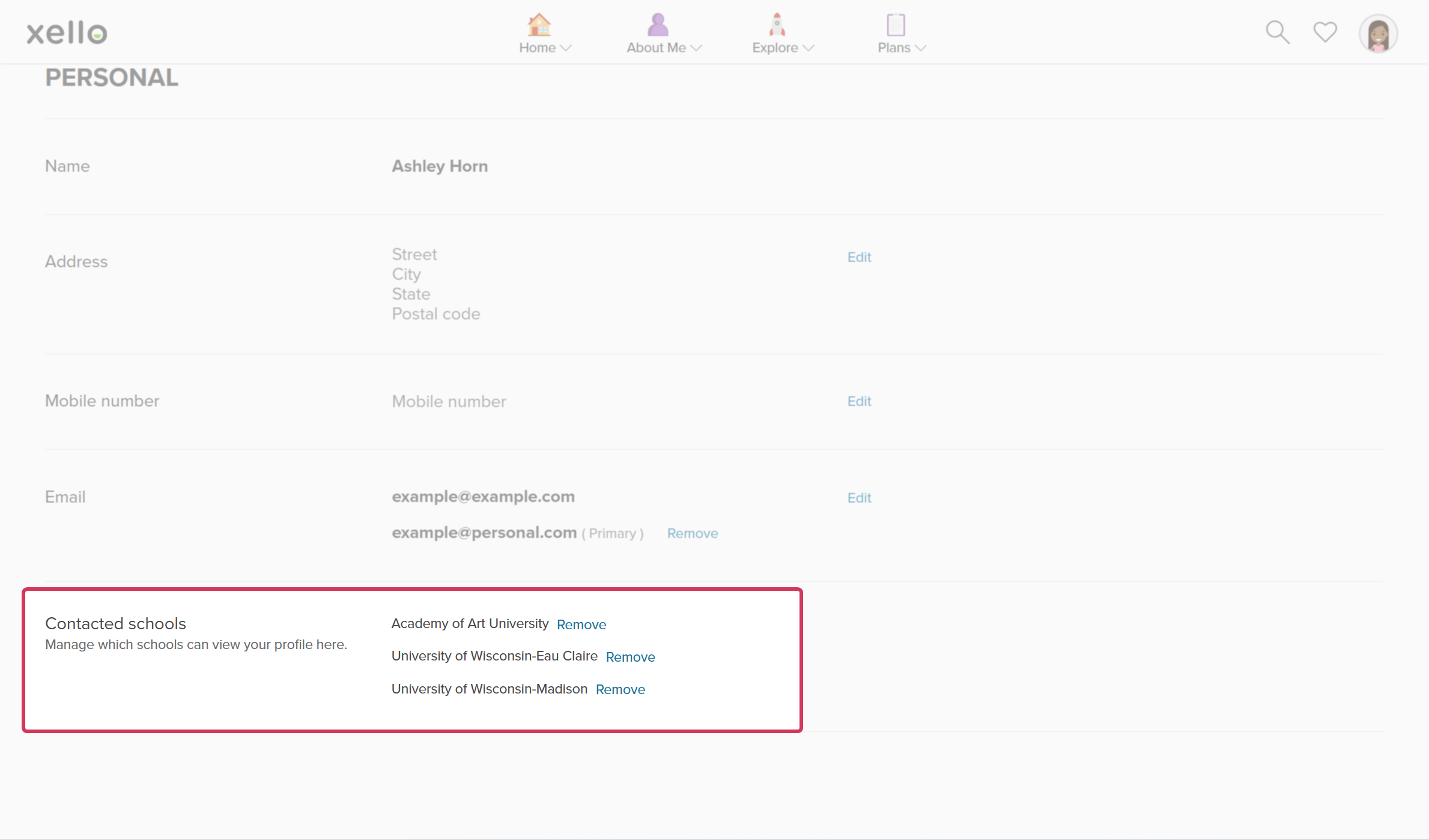
- They scroll down to the Contacted schools section. This
is where they can view the full list of schools they've shared their profile with.
 Click to enlarge
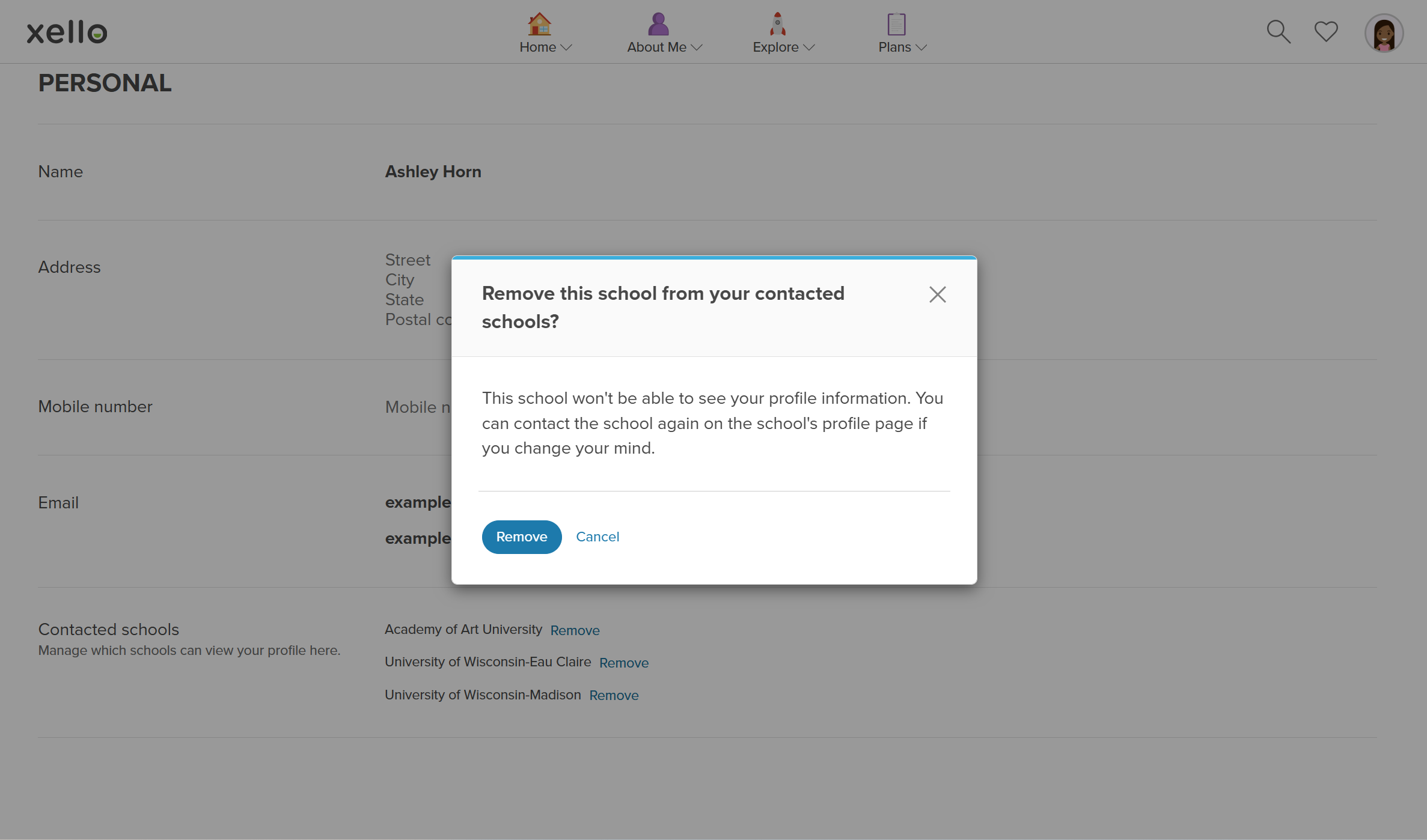
- To remove a school's ability to view their information, they click Remove next to the school name.
- They confirm they understand that the school will no longer be able to see their profile information and click Remove.
 Click to enlarge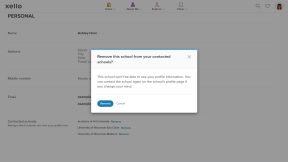
 Back to top