3 minutes
Using Course Planner in Xello, students can create their course plans for 7th and 8th grade. By picking their classes in middle school, they can gain confidence and familiarity for when it's time to build their high school course plans.
 Tip: Share the following guide with your students to help get them started with Course Planner in Xello: Add your classes to Course Planner
  .
.
.
.
How students in middle school build their course plans in Xello:
- They open Plans and click Course Planner.
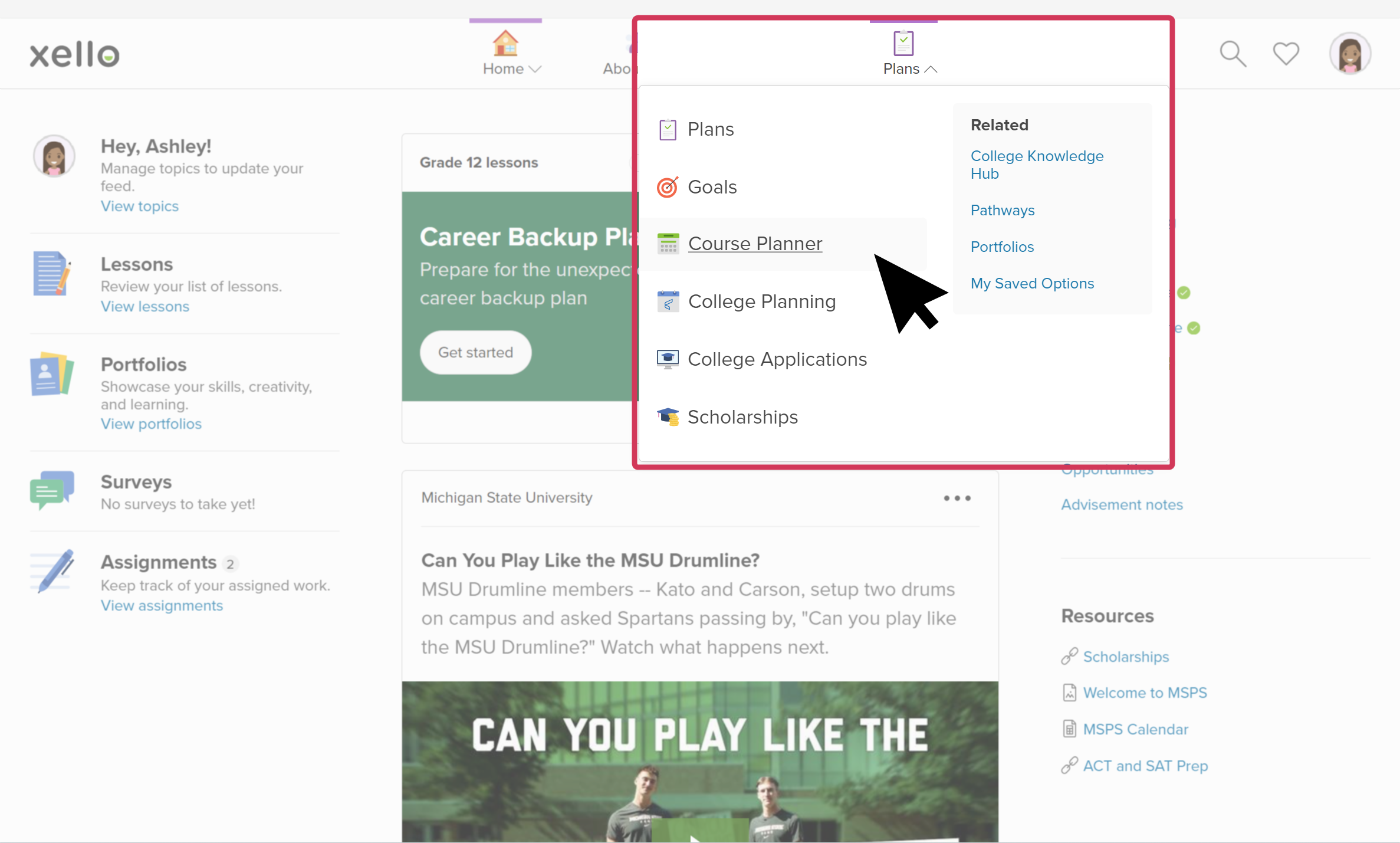 Click to enlarge
 Note: Students will only see Course Planner if the feature setting is turned on for their grade. Check out Change Course Planner settings to learn more.
 - On the Course Planner page, there is a column for each grade. For previous grades, they'll be able to view their marks in each subject.
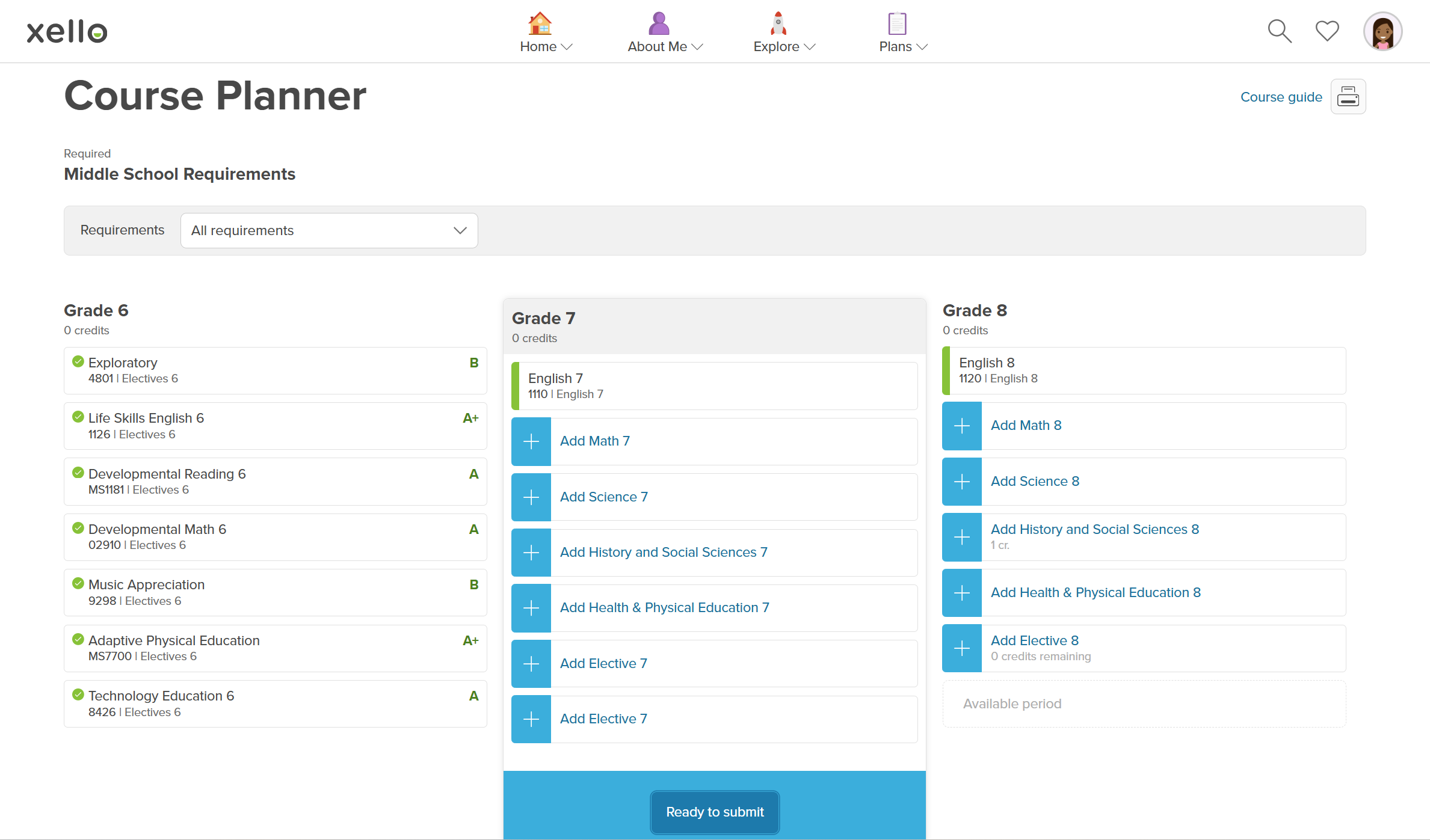 Click to enlarge
- To simplify the page, they can click the Requirements dropdown and narrow the planner to one subject.
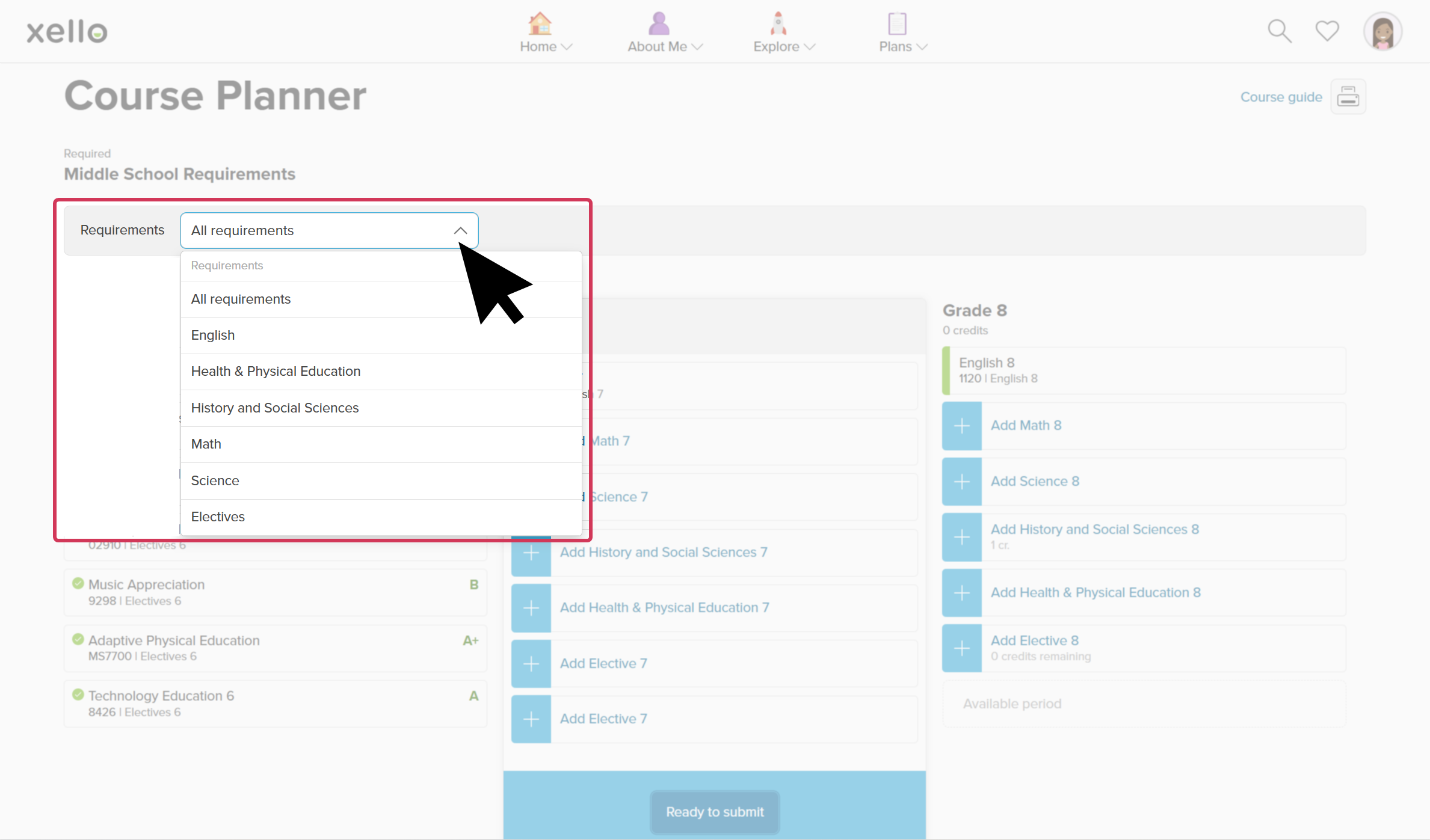 Click to enlarge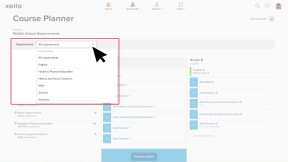
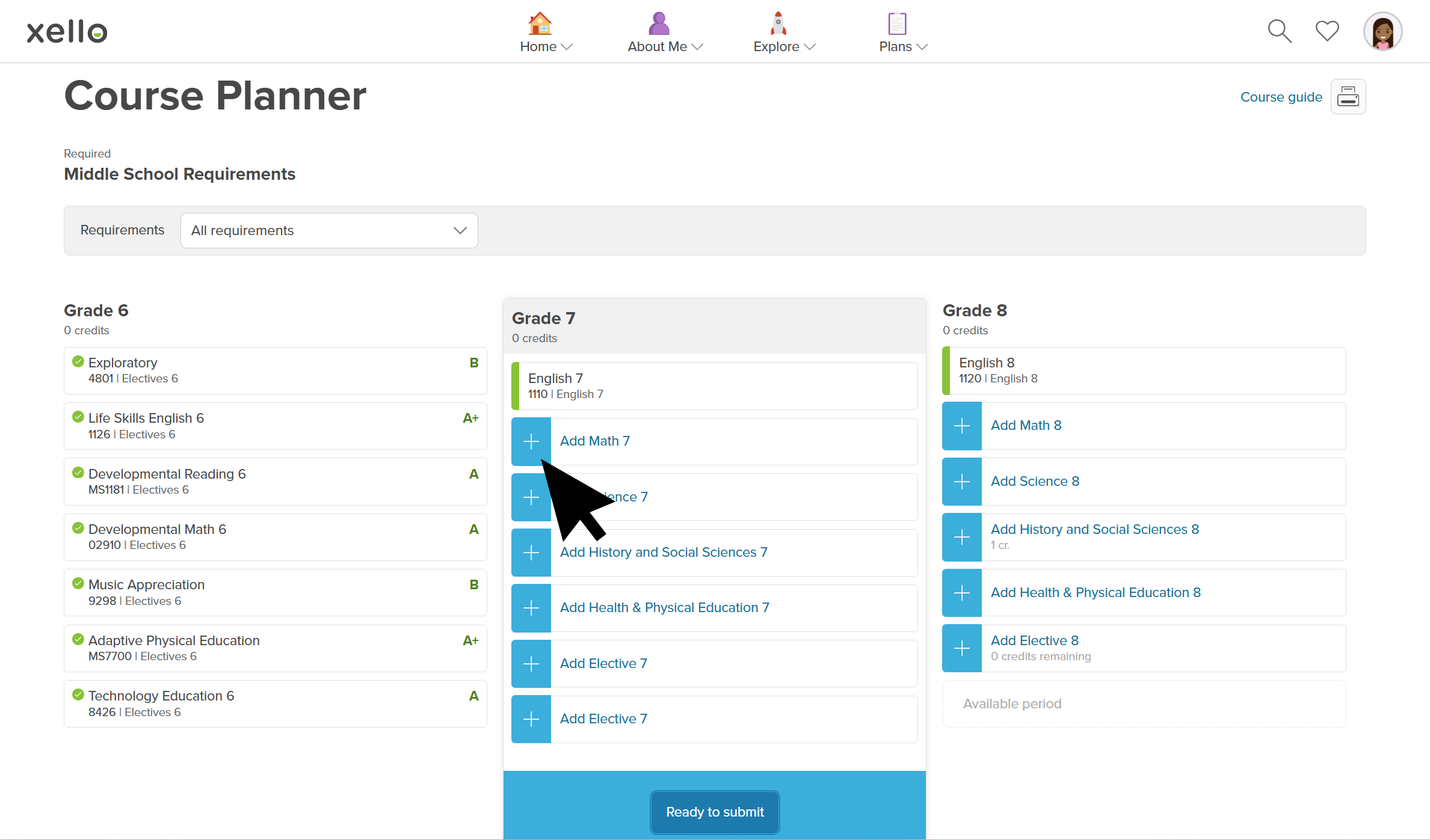
- They click the plus sign next to a requirement to open a list of courses that satisfy that requirement.
 Click to enlarge
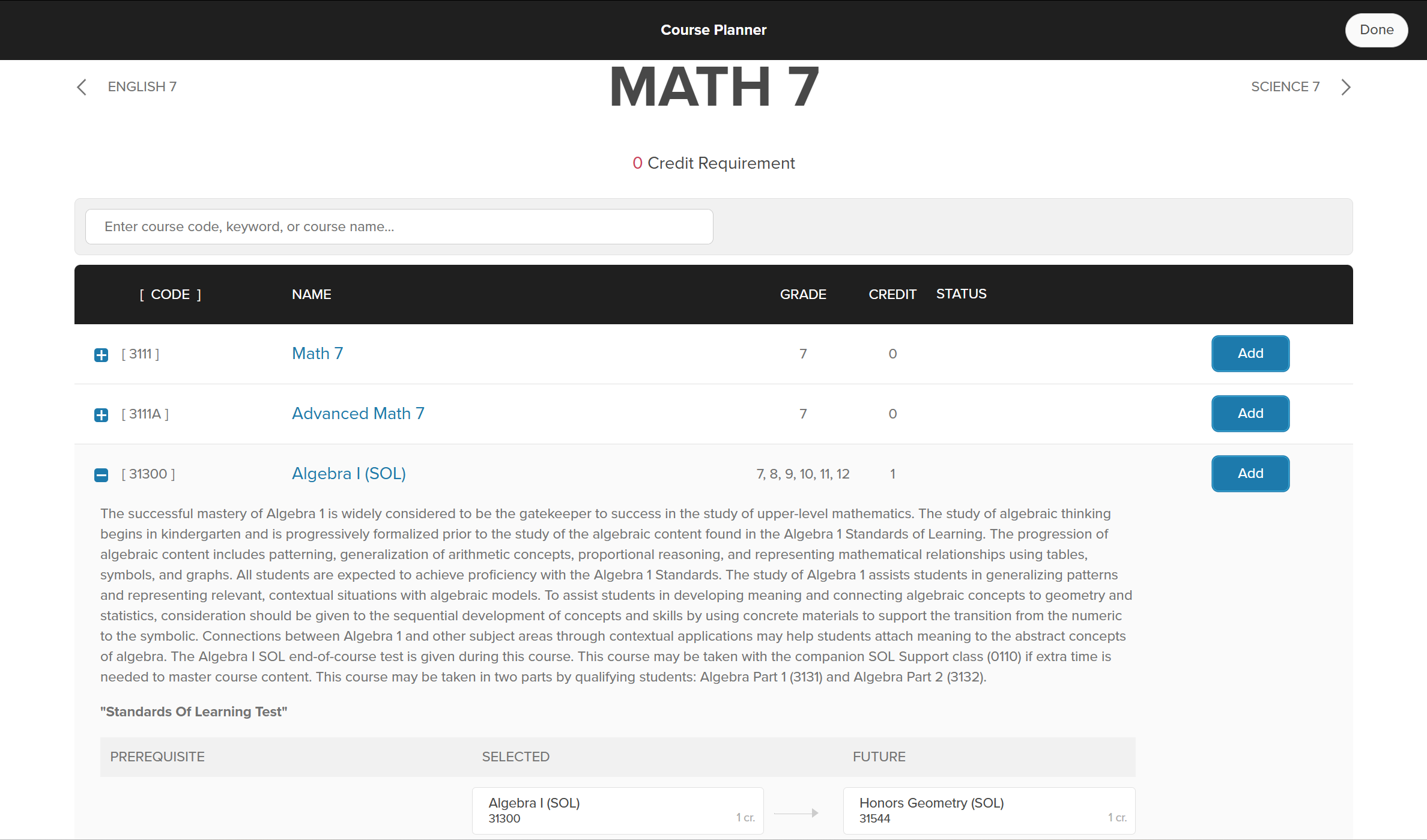
- They click on the course name to see information about the course including course description, required prerequisites, and future courses that students may take once they complete the course. Prerequisites in green indicate that the student has completed the required prerequisite.
 Click to enlarge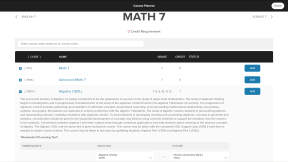
- Once they've chosen the course they want, they click Add. A green checkmark and tag confirm that the course was added to their plan.
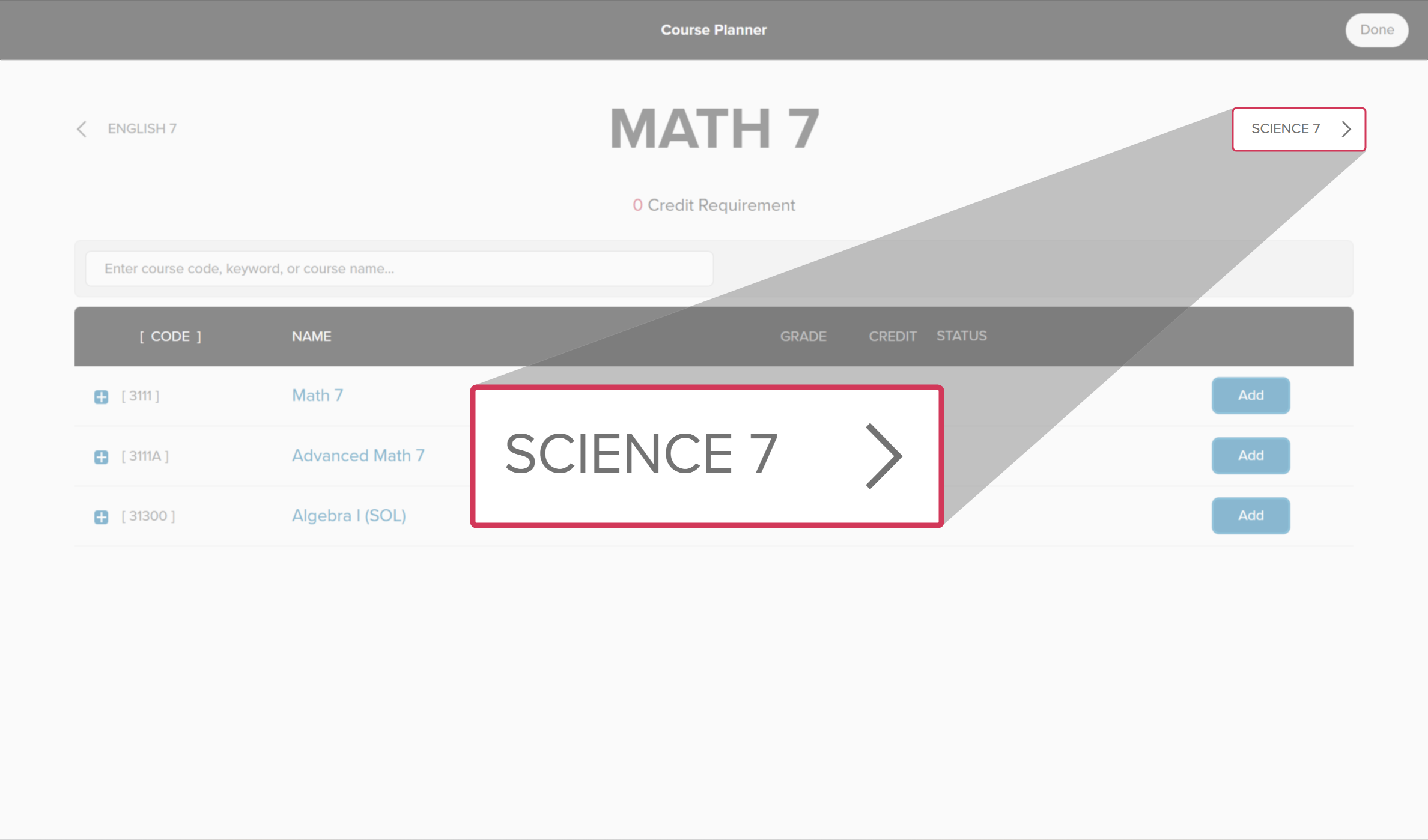
- To navigate to the next requirement or elective, they click the subject name next to the current subject title.
 Click to enlarge
- When they're done adding courses, they click Done.
- When they've finished adding the courses for a grade, they click Ready to submit.
- If there are any alerts or issues, they'll get a message before they submit with what needs to be fixed. Check out Course Planner alerts to learn which alerts they may get.
 Back to top
Additional resources
-
 PDF
PDFAdd your classes to Course Planner - middle school student guide
PDF
PDFAdd your classes to Course Planner - middle school student guideShare this quick guide with your middle school students to help get them started with Course Planner.
-
PDF
PDFMiddle school course Planner parent/guardian approval
A quick guide to be shared with parents/guardians of students in 6th and 7th grade to walk them through approving their child's course plan in Xello.
-
 recorded webinar
Recorded webinarHow students plan middle school courses in Xello
recorded webinar
Recorded webinarHow students plan middle school courses in XelloSimplify middle school course selection! Master Xello's Course Planner with your 5th-7th grade students. Track submissions, manage requests, approve plans, and leverage key reports for seamless administration.
-
PDF
PDFCourse Planner annual tasks guide
Download this guide for helpful reminders on what to review and update in Xello's Course Planner each year.
 Select