6 minutes
Fee waiver requests often arrive in batches, and fulfilling them quickly is essential for your students. To process these documents efficiently, you can use the bulk send option, to quickly send all ready fee waivers within the Parchment network to multiple colleges and students with just a few clicks.
 Permission types and fee waivers in Xello
Your educator permissions will determine what you can access and the actions you can complete in the College section in Xello. To learn more, including how to find out your permissions, check out Permissions and college applications.
| Admin | User | Limited | |
|---|---|---|---|
| Access and actions |
|
|
|
Bulk send fee waivers
If your task is to begin sending fee waivers for your students, narrow the All document requests to just fee waivers. You can also narrow the list further with other filter options.
To bulk send fee waivers:
- From your educator account, under Features, click College and select Application manager.
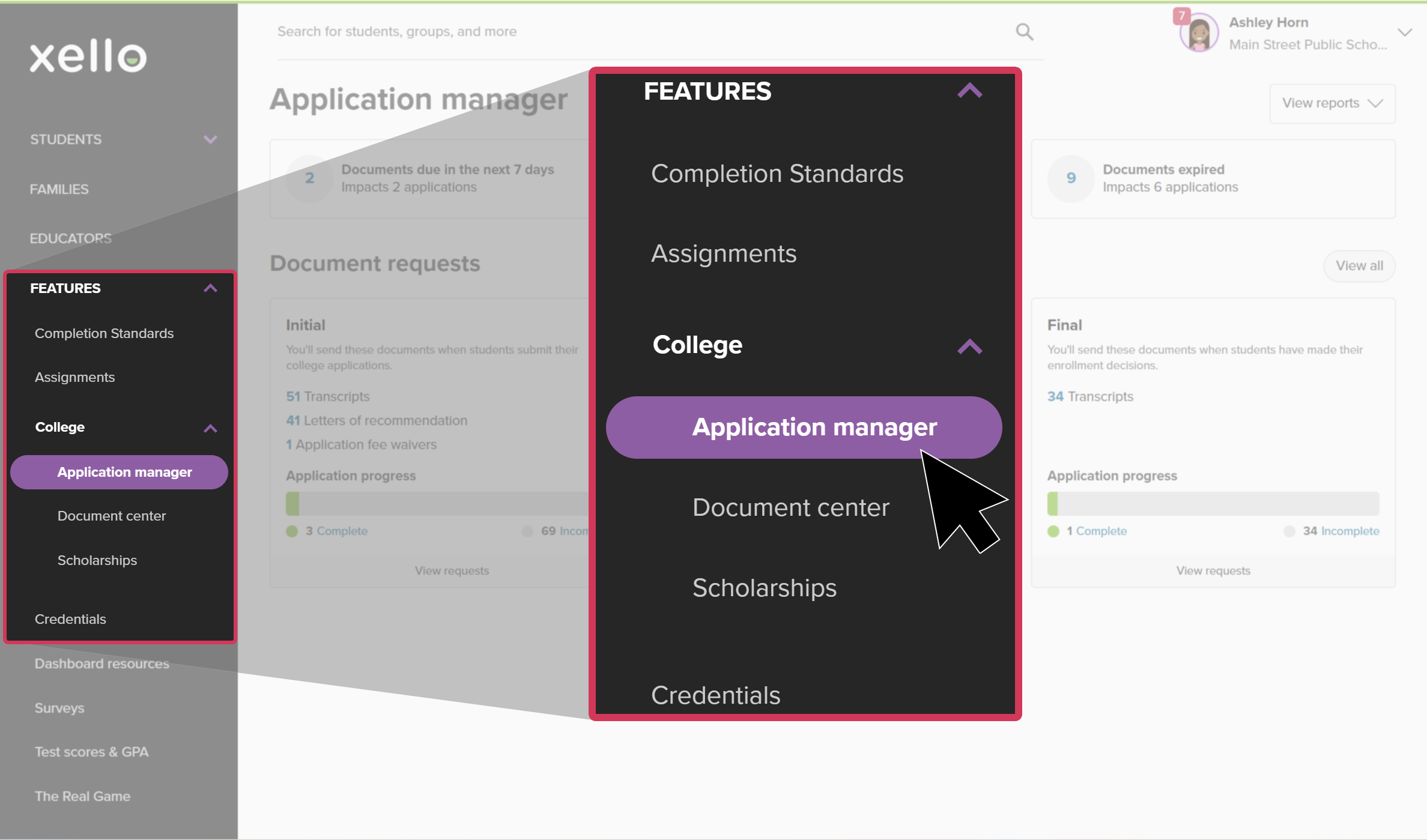 Click to enlarge
- Or, from your dashboard, click the College applications banner.
- In the relevant Document requests tile (Initial, Mid-year, or Final), click the number next to fee waiver. This will open the list of incomplete document requests that include the fee waiver you selected.
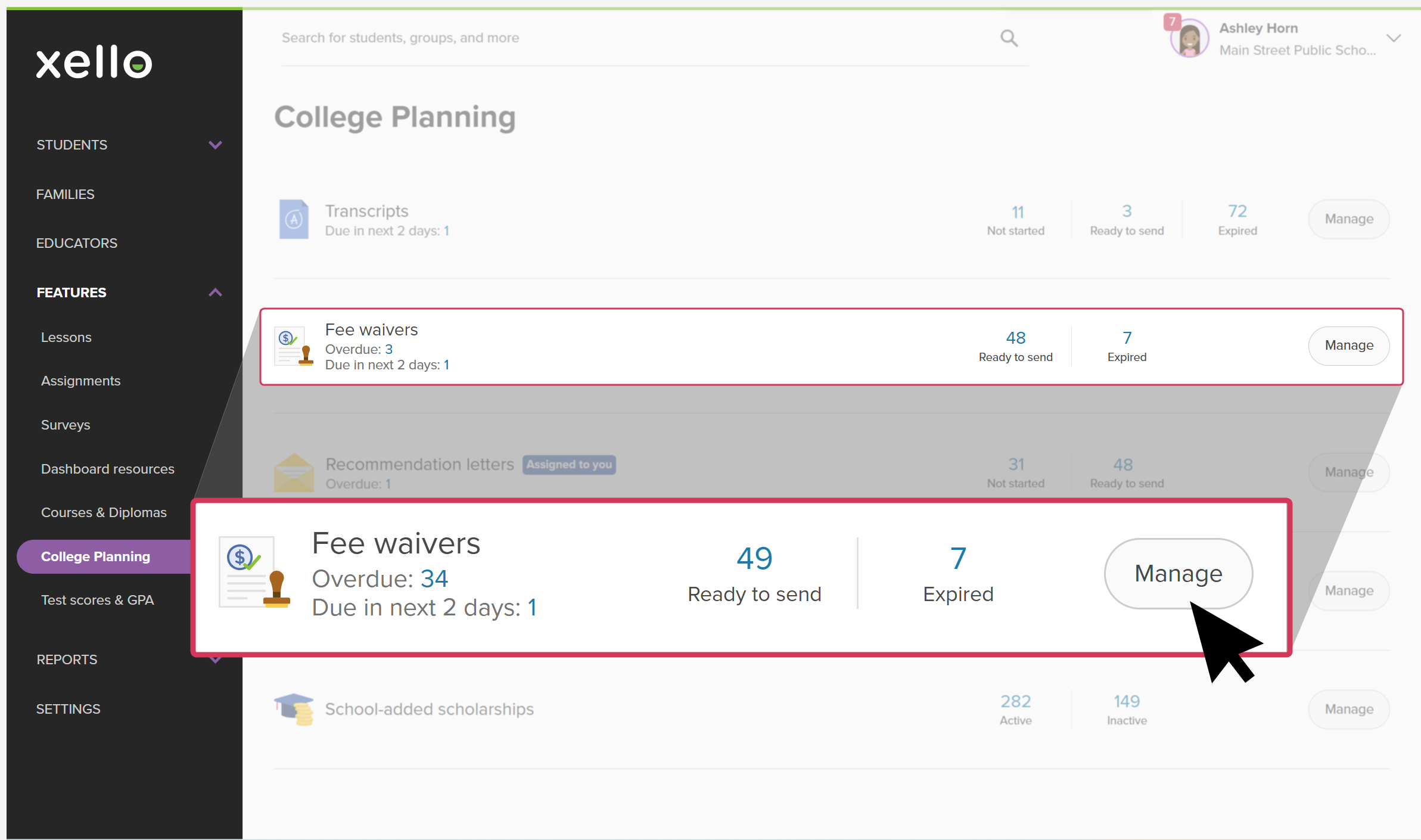 Click to enlarge
-
 Tip: Once on the All document requests page, if you want to narrow the list of fee waiver requests further, click Filters and choose one or more. Options can include college, application status, group, grade, and more.
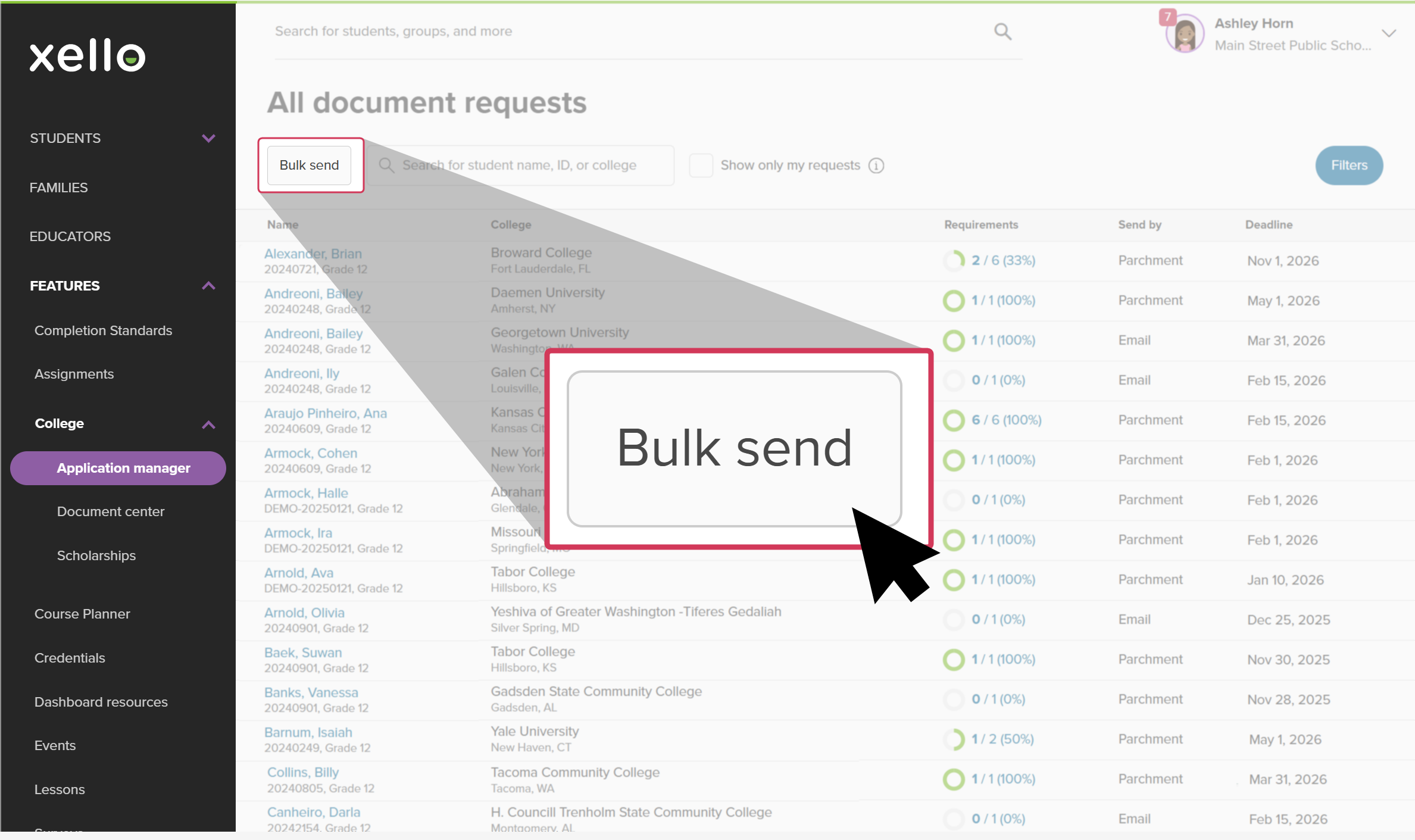
- To send all the requested fee waivers in this filtered list, click Bulk send.
 Click to enlarge
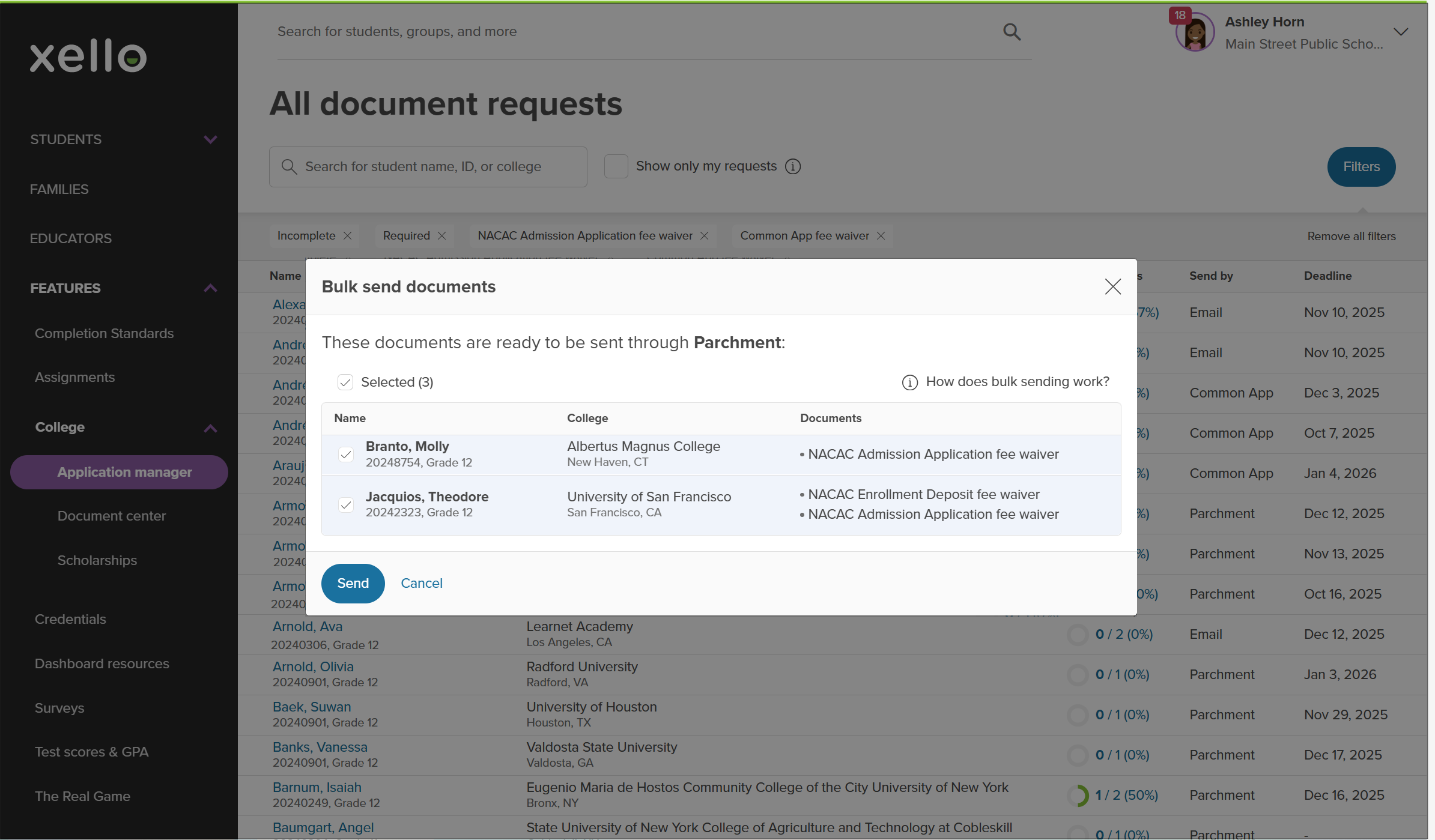
- In the Bulk send documents modal that opens, review the students with requests that are ready to send. You can view the name of the student, the college, and which fee waivers are ready.
 Click to enlarge
- If there are students you don't want to send fee waivers for yet, you can deselect their name. Their fee waivers will not send.
- When you're ready, click Send.
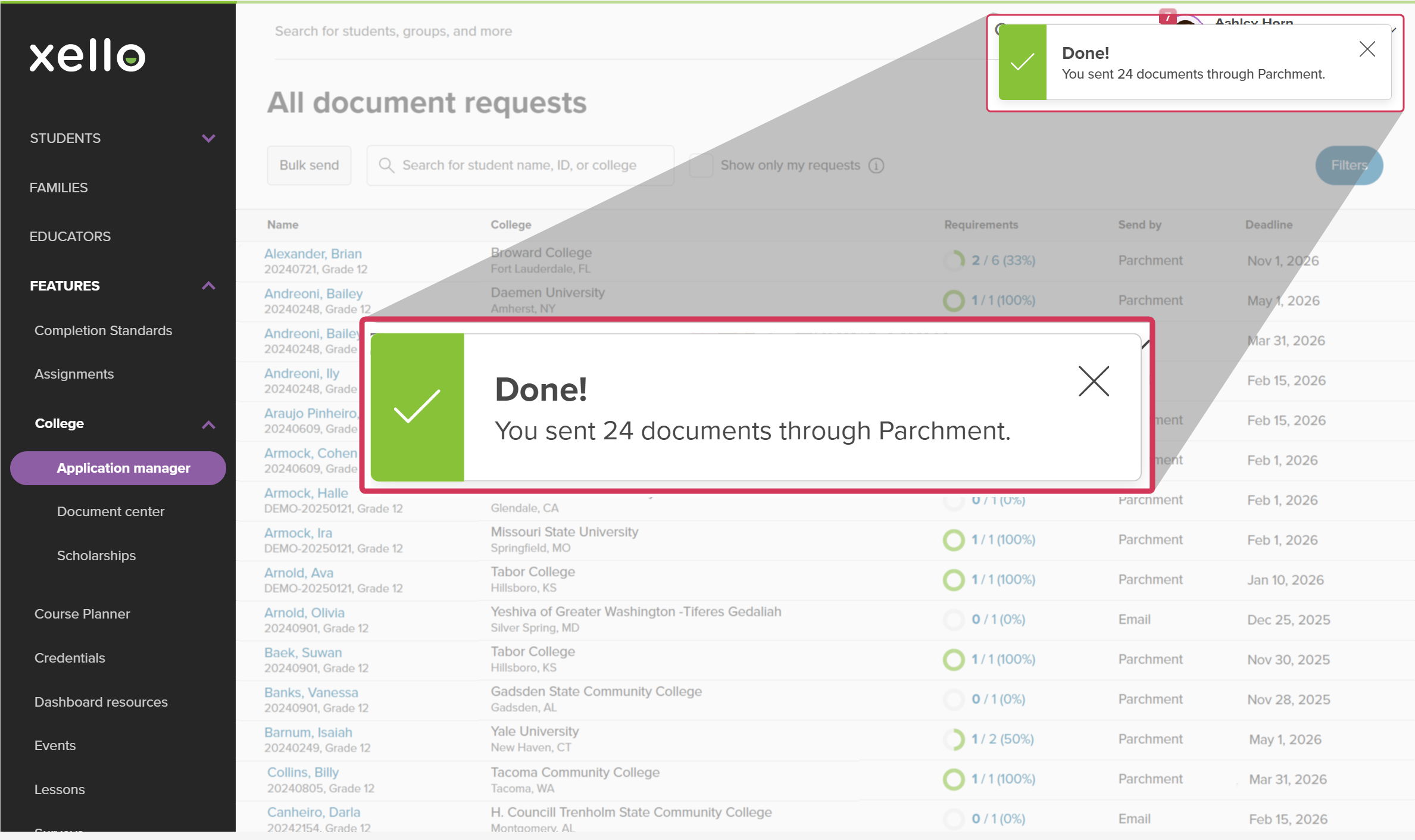
- A banner will indicate if the documents were successfully sent.
 Click to enlarge
- If there was an issue sending the documents, you'll get an error message letting you know how many documents were sent and how many did not send. You can export the error log to Excel or a CSV file. The log won't be available after the window is closed.
- A banner will indicate if the documents were successfully sent.
 Back to top
Bulk send multiple documents for multiple students
When you have dozens, or even hundreds, of document requests ready to go, use this method to send documents for multiple students across multiple applications. This bulk send option includes all completed documents that are ready to send via Parchment, such as transcripts, fee waivers, and letters of recommendation.
To bulk send multiple documents for multiple students:
- From your educator account, under Features, click College and select Application manager.Click to enlarge
- Or, from your dashboard, click the College applications banner.
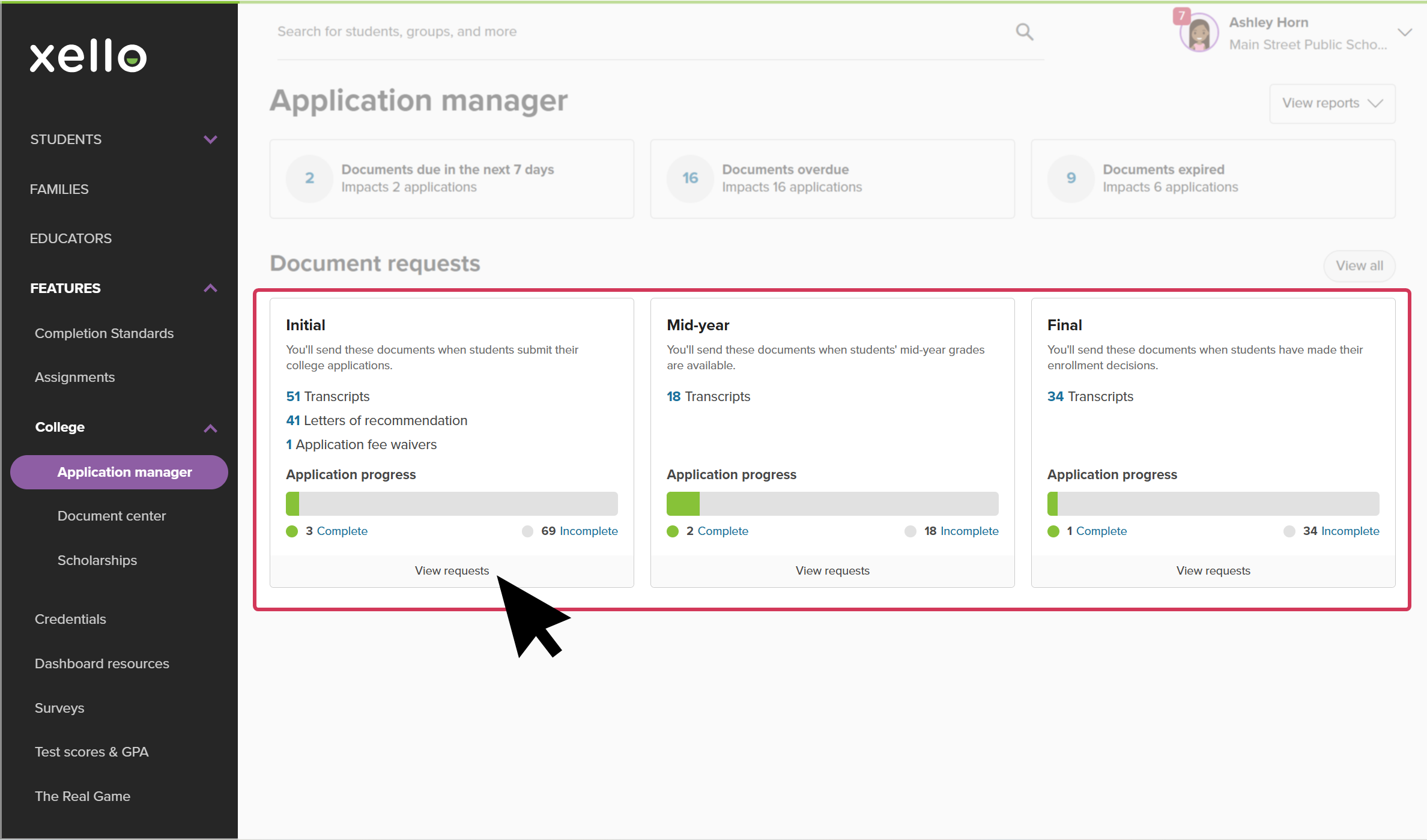
- In the relevant Document requests tile (Initial, Mid-year, or Final), click View requests. This will open the list of incomplete document requests for that time.
 Click to enlarge
- To send all the requested documents within the Parchment Receive network, click Bulk send.
Click to enlarge
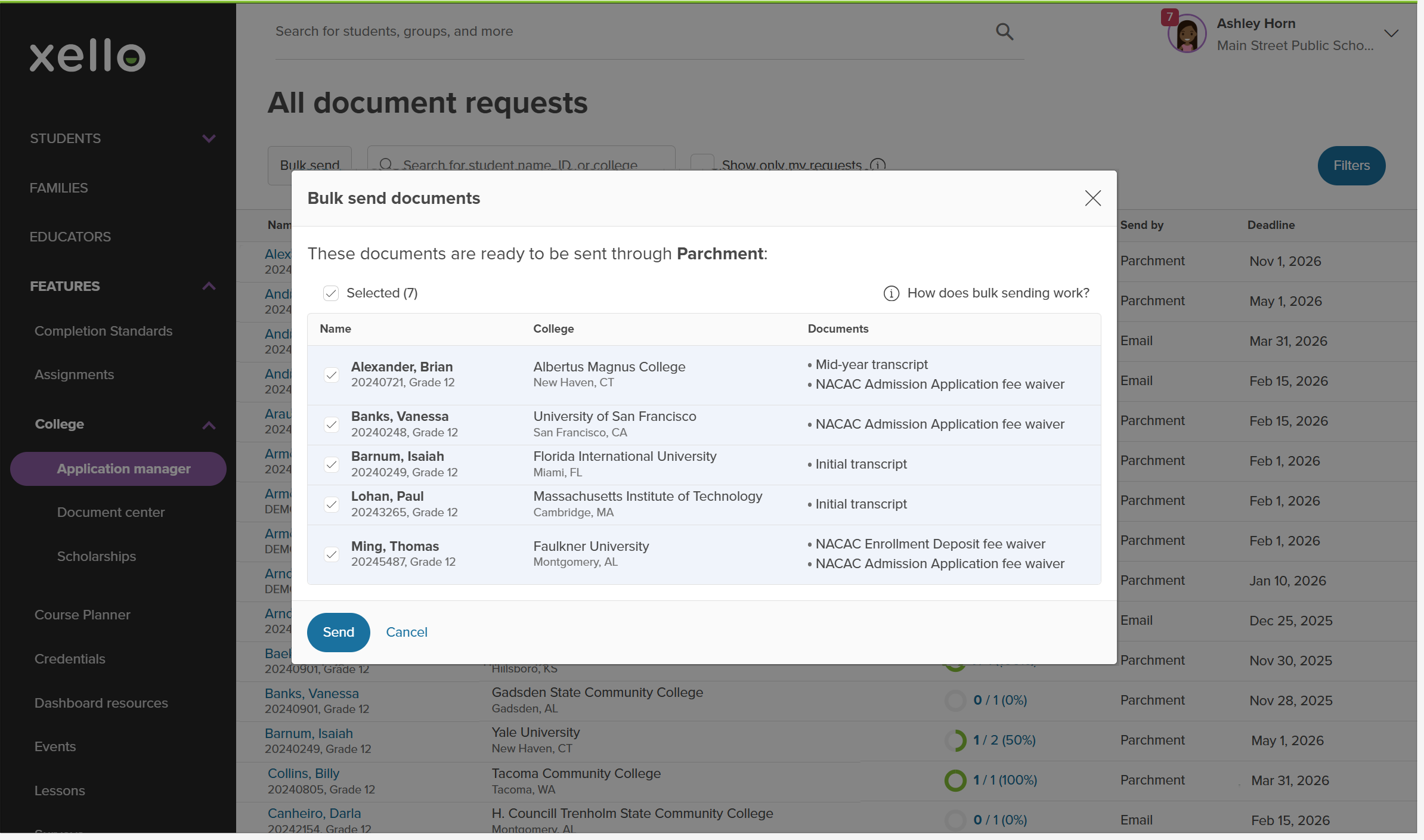
- In the Bulk send documents modal that opens, review the documents that are ready to send. You can view the name of the student, the college, and the documents that will send.
 Click to enlarge
- If there are students you don't want to send documents for yet, you can deselect their name. Their documents will not send.
- Once you've reviewed the documents, click Send.
- A banner will indicate if the documents were successfully sent.
Click to enlarge
- If there was an issue sending the documents, you'll get an error message letting you know how many documents were sent and how many did not send. You can export the error log to Excel or a CSV file. The log won't be available after the window is closed.
- A banner will indicate if the documents were successfully sent.